
Hospital WiFi QR Code: Free Generator for Patient Connection

You can create a hospital WiFi QR code right here, for free, with no sign-up. It puts the network name and password into a static code that patients scan with their phone’s camera—so they connect instantly, no call button needed.

Input

Image Preview

Why a static Wi-Fi QR code eases hospital patient access

No more call-button interruptions

No more call-button interruptions

When patients can scan a QR code on their bedside table to jump straight onto Wi-Fi, they stop pressing the call button just to ask for the network name or password. You free up nurses for actual care tasks instead of playing tech support. A simple printed sign with a static code can quietly save dozens of interruptions each day.

Instant connection, no typing

Instant connection, no typing

Your patients just open the camera, scan, and tap to join—no squinting at tiny print or fumbling with keyboards. That’s especially helpful for elderly patients, folks with limited dexterity, or anyone who’s groggy after a procedure. The phone does all the work, and they’re online in seconds.

Works even without cellular data

Works even without cellular data

Because this is a static QR code, the scanning device doesn’t need any internet at all to read it—just a camera. A patient without a data plan or with spotty cellular coverage can still connect to your guest network. The phone simply decodes the Wi-Fi details and joins, no online lookup required.

You print it and forget it

You print it and forget it

Generate the code in seconds right from the website, no sign-up or app needed. Print it on a poster, a bedside card, or even a screen in the waiting area, and it’s done. There’s nothing to update or maintain, so your staff can focus on patients instead of managing tech.

How do I create a hospital WiFi QR code?

  1. Step 1

    Gather your Wi‑Fi details

    Find the network name (SSID), exact password, and security type your hospital already uses—usually WPA2. Jot them down so you can enter them without fumbling.

  2. Step 2

    Open the free generator

    Head to the page—no sign‑up, nothing to install. You’ll see a clean form with three fields waiting for your info.

  3. Step 3

    Enter the network name

    In the SSID field, type the Wi‑Fi name patients will see on their devices. A clear name like “StMarys-Guest” helps them know it’s the right one.

  4. Step 4

    Pick the security type

    Select WPA/WPA2, WEP, or None from the dropdown. Most hospitals use WPA2—choose that, then the password field appears.

  5. Step 5

    Add the Wi‑Fi password

    Type the network password exactly as it’s configured. The generator encodes it directly into the QR, so patients won’t need to type it.

  6. Step 6

    Generate and grab your QR

    Hit the generate button. Your QR code shows up instantly on the page—no waiting. Preview it, then click download to save the image file.

  7. Step 7

    Print and post it where it helps most

    Add the QR code to bedside cards, admission folders, or wall signage. Patients scan and connect in seconds, skipping the call button for Wi‑Fi help.

Can a simple QR code lower nurse call button use?

You've seen it happen: a patient presses the call button just to ask, "What's the Wi-Fi password?" That single request pulls a nurse away from clinical duties, adds frustration to an already long shift, and leaves the patient waiting. A hospital Wi-Fi QR code posted in the room changes that dynamic. It's a static code, created once and printed on a simple card or sticker. Patients scan it with their phone's camera, and they're online—no typos, no calls for help. For hospital administrators tracking non-clinical call button presses, this small change can bring a surprising drop in avoidable interruptions.

Here's how it works with the free generator on this page: you type in your network name (SSID) and password, hit generate, and download the QR image. No sign-up, no login, nothing to manage later. Because it's static, the encoded data is fixed—the exact same Wi-Fi credentials every scan. That means once it's up in a patient's room, there's zero maintenance. Wi-Fi passwords in clinical settings tend to be stable because changing them would disrupt monitors, workstations, and staff devices. So you set it and forget it. Compare that to a dynamic QR code that requires a subscription and can break if the service changes—overkill for something as simple as guest or patient Wi-Fi.

Let's put some real numbers behind the time saved. Imagine a 30-bed med-surg unit where just 4 patients a day hit the call button for Wi-Fi help. If each interruption takes a nurse or tech 3 minutes—walking to the room, retrieving the password, maybe troubleshooting a phone—that's 12 minutes daily, over an hour a week. In a larger facility with multiple units, you're looking at hours of staff time that could go to rounding, med passes, or answering true clinical calls. One community hospital that piloted visible Wi-Fi instructions at the bedside reported a 40% drop in related call light use within a month. The QR code makes it instant: scan, tap to join, done. Patients feel more in control, families can connect without hunting down a nurse, and the care team stays focused.

Who benefits exactly? Patients get connection when they need it—whether for entertainment, video calls with loved ones, or accessing their own health records. Nurses and nursing assistants reclaim time for clinical care. Hospital administrators see a measurable improvement in patient experience scores, which often include questions about communication and responsiveness. Even the IT help desk gets fewer frantic calls. And because the generator is free, you can make a custom code for every floor or wing in minutes, right from the bedside workstation. No procurement approvals, no IT project.

A few practical tips make the difference between a QR that gets used and one that gets ignored. Place the code where a patient can easily aim their phone: on the bedside whiteboard, the visitor chair arm, or the admission folder they're already holding. Always include the network name and password in plain text right next to the QR—older phones or visitors with scanner issues still need a manual way to join. Common mistake: tucking the code behind the TV or on a ceiling-high poster. If a patient in bed can't reach it or angle their camera, the whole purpose is lost. Another pitfall: overcomplicating it. You don't need a dynamic QR that tracks scans or expires; the guest network password isn't a trade secret. A simple, static hospital Wi-Fi QR code printed on a durable sticker is the most reliable option.

When you're ready to try this, spend five minutes creating your first code. Test it with both iPhone and Android devices before printing in bulk—some older phones need a QR app, though most now handle it natively. If your facility separates patient and staff networks, make a separate QR for each. The generator handles spaces, special characters, and encryption types just like a normal Wi-Fi setup. Once you see how many call lights stay dark because a patient already connected on their own, you'll wonder why you didn't use a hospital Wi-Fi QR code sooner.
5 clever places to display your hospital Wi-Fi QR code

A Wi‑Fi QR code only helps if patients actually see it. Tuck it into the spots where eyes naturally land—no hunting required.

Bedside Table Card

Bedside Table Card

Laminate a small card and stand it upright on the bedside tray. When a patient sits up to reach for water or their phone, the code is right there—scan and connect without pressing the call button.

Welcome Letter Insert

Welcome Letter Insert

Slip a printed QR code into the admission packet beside your welcome letter. Family members often scan while waiting, giving anxious visitors instant access to messages and entertainment.

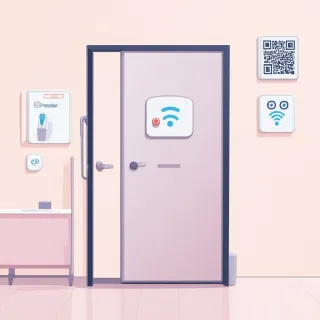
Behind the Room Door

Behind the Room Door

Stick a decal on the back of the patient room door at eye level. It’s the first thing a nurse or visitor sees after closing the door, and it doesn’t clutter the bedside space.

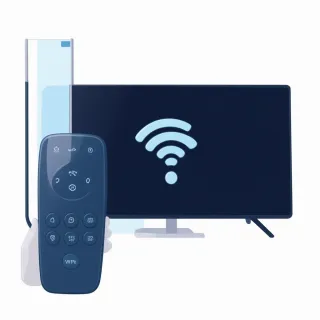
Next to the TV Remote

Next to the TV Remote

Place a sticker right on the remote’s docking station or on the bedside table next to it. Patients naturally look there when they want to watch something, making the Wi‑Fi one less barrier to distraction.

FAQ: Hospital WiFi QR code questions

No, most modern smartphones—both iPhones and Androids—scan QR codes directly through the built-in camera app. The code contains the network name and password in a standard format, so the phone prompts to connect automatically without any extra software.