QR Code for Used Car Dealers Toronto: QRDrobe Vehicle Info

A qr code for used car dealers toronto is practical when the printed code still opens the right car after a price drop or mileage update. With QRDrobe's Vehicle Info dynamic QR template, fill in Vehicle Photos, Heading, Subheading, Mileage, Body Style, Engine, Fuel Type, Transmission, VIN, Phone, Email, Address, Website, and Description, then print the QR once. Later edits keep the same code working, and scan analytics show which Toronto cars draw real interest.

Free while in beta

Make your own in minutes

Create a mobile page, update it anytime without reprinting, and track every scan.

Create your dynamic QR code →

Free account, no credit card • Up to 25 cards during beta

Can I update the price and mileage on a printed QR code after changing the car's details?

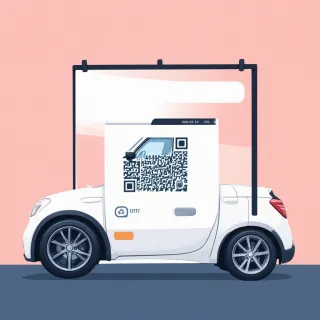
Yes — if you're using a QRDrobe Vehicle Info dynamic QR code for used car dealers in Toronto, the printed code on a window sticker or lot sign keeps pointing to the same editable card after you change the car's details. There is no separate price field, so put the asking price in the Subheading or Description field. Change the Mileage, Vehicle Photos, Phone, Email, Address, or Website fields in the app, save the card, and the already-printed QR opens the updated version — no reprint.

For a Toronto used car dealer, that means you can print one window sticker on a Monday that says “2018 Honda Civic LX — $12,995” in the Subheading and “47,000 km” in the Mileage field. By Saturday, if you lower the car to $11,900 and the mileage moves to 47,300 km after test drives, you open the same Vehicle Info card, update those two fields, and save. The printed code on the car still scans to the new price and mileage. If this were a static QR code, the old price would sit on the sticker until you printed a new one, and buyers might see a price that no longer matches your lot.

Because the Vehicle Info template does not have a dedicated price field, choose a consistent place for the asking price so it stays easy to find. The Subheading works well for a short, scannable line like “$11,900 · 47,000 km · recent safety” or “$15,500 · 2020 Toyota RAV4 XLE AWD.” The Description is better for longer detail, such as “Asking $11,900. Recent safety inspection, new rear brakes, one previous owner.” Avoid placing the price only inside a photo, because that text cannot be selected or summarized cleanly when someone lands on the card, and you would have to re-export a photo every time the price changes.

A common mistake is editing the card and then generating a brand-new QR code for the same vehicle. That creates a new code you would need to print, which defeats the point. With a dynamic QRDrobe code, the original QR image you already printed does not change — only the card behind it changes. If you make a new QR code on a Friday, the older printed sticker still points to the old card unless you update that original card. For a small Toronto lot with many cars, keep one Vehicle Info card per vehicle and update the original card rather than duplicating it each time a price or mileage changes.

Also update every field that might hold an old figure. If you put “$12,995” in the Subheading and “Asking $12,995” in the Description, change both when you drop the price. Same for mileage: if the Mileage field says 47,000 km but the Description still says “only 47,000 km,” fix both. After saving, scan the actual printed sticker with your phone to confirm the live card shows the current price, mileage, and photos. It is a quick final check that takes less time than reprinting a windshield sticker, and it catches missed fields before a buyer sees an inconsistency.

This update-after-print workflow is one of the biggest reasons a dynamic Vehicle Info QR code works better for Toronto used car lots than a static one. You can run a weekend price drop, add fresh interior photos after detailing, or change a salesperson's phone number without touching the printed code. Since scan analytics are available for dynamic cards, you can also watch whether scans increase after a price update — a useful signal for how buyers are responding to the car and whether the new number in the Subheading is doing its job.
How exactly to fill out the QRDrobe Vehicle Info fields for a Toronto used car lot

  1. Step 1

    Start with Vehicle Photos so buyers see the actual car

    Upload clear, well-lit shots from the front, rear, sides, interior, and odometer — the kind of photos you'd send someone before a test drive. These go into the Vehicle Photos image gallery on the mobile card, so a buyer scanning the QR on a Toronto lot can flip through them on the spot.

  2. Step 2

    Fill in the required Heading, then add a Subheading

    Make the Heading the car's key line, like '2016 Honda Civic LX — Clean, Low-Kilometre Toronto Car.' The Heading is required, and this is what a shopper sees first, so include year, make, model, and trim rather than just 'Honda Civic.' Use the Subheading for a short nudge, such as 'One-owner car, Ontario inspected, ready for a test drive.'

  3. Step 3

    Enter the specs buyers ask about first

    Set Mileage (mi/km) to '98,000 km' so it matches the odometer. Fill Body Style as 'Sedan,' Engine as '2.0L 4-cylinder,' Fuel Type as 'Gasoline,' and Transmission as 'Automatic.' Put the full VIN in the VIN field — Toronto shoppers often copy it to check history, so double-check each character.

  4. Step 4

    Add lot contact details that make the next step easy

    Use the Phone field for a direct lot or sales line with a 416 number, like '416-555-0147,' and add the Email you actually monitor. Put the street Address of the Toronto lot in Address and your Website URL in Website, even if the site is a simple inventory page. This way the card answers 'where are you and how do I reach you?' without a second search.

  5. Step 5

    Write a Description that includes the asking price

    Description is required, so use it as a short lot listing: '2016 Honda Civic LX sedan with 98,000 km, 2.0L engine, automatic transmission, new all-season tires, and an Ontario safety certificate. Asking $14,995 — financing available on approved credit.' Mention the price and one or two honest selling points; don't leave it blank or just repeat the Heading.

  6. Step 6

    Style and download the QR once you're happy

    After you've filled the card, sign up free in the app, then use the styling options to make the QR code match your lot's look — dark green on white, a rounded frame, or your usual signage colours. Download the print-ready code and keep the same dynamic QR for this vehicle; future edits to the card won't break it.

  7. Step 7

    Scan the code yourself before you print or place it

    Open your phone camera, scan the downloaded code, and check the mobile card exactly as a customer would: photos load, Heading and Description read well, phone number is easy to tap, and the lot address is correct. Then print the code on a window sticker, dash tag, or lot sign and place it where a shopper can scan from outside the car.

  8. Step 8

    Update the card later without reprinting the QR

    If the price drops, mileage changes, or a salesperson's phone number changes, edit those fields on the QRDrobe Vehicle Info card and save. The same printed QR on the windshield keeps working, so you don't have to swap stickers across the lot. Check the scan analytics to see which vehicles are getting serious lookers.

What to check before you print a QR code for a used car on a Toronto lot

If you're about to print a QR code for used car dealers Toronto shoppers will scan, run a five-minute pre-flight check on your QRDrobe Vehicle Info card before you send the file to a print shop or tape a sticker to the glass. Confirm the required Heading and Description fields are filled in, the Vehicle Photos show the actual car in front of you, the Mileage field matches the odometer, Phone and Email are current, and each vehicle's QR opens a card with that exact VIN. Also make the printed code large enough for a buyer to scan from the sidewalk on a Queen Street or Danforth lot: at least 2–3 cm on the printed sheet, with strong contrast and a little quiet space around the code. If you skip these checks, you're printing a route to a dead phone number, a different car, or a card that won't load on a buyer's phone.


Start inside QRDrobe with the card itself. Heading is required, so use it the way a buyer reads it at the lot: 2018 Honda Civic LX Sedan is better than Civic or Great deal. Description is required too, and this is where many Toronto dealers lose the sale: don't leave the asking price out. Put the price, a quick odometer note if you want it repeated, and one or two buyer-relevant lines like one-owner trade-in, safety inspected, winter tires on separate rims included directly in Description. If you want the price to be the first thing a shopper sees, also add it to Subheading, because Subheading sits right under the Heading. Body Style, Engine, Fuel Type, Transmission, and VIN are the fields buyers use to compare against an AutoTrader or Kijiji ad, so fill all of them — a 2016 Mazda3 with no transmission listed just gives a buyer a reason to walk to the next lot on the Danforth.


For Vehicle Photos, use only real photos from this car, not dealer stock photos of a similar trim. Include at least one shot of the odometer or instrument cluster if the Mileage field matters to you, because the photo and the text should agree. If the car has a scratch, rust spot, or aftermarket wheels, photograph it; Toronto buyers often appreciate honesty and may ask about that exact blemish. If you're listing several similar Civics or Corollas, label each photo set mentally by VIN before you upload, because the gallery is per card and easy to mix up.


Make one QRDrobe Vehicle Info QR code per vehicle, not one code for the whole lot. The card behind the code is a single editable mobile page for that car, so tying one code to the correct VIN is the only way a buyer's phone shows the exact car they're standing beside. If you print 20 copies of the same code and put it on 20 cars, someone scanning a black sedan may be looking at a white SUV's mileage and phone number. Before you finalize, scan the code yourself from the printed proof and check that the VIN shown on the mobile card matches the VIN plate on the windshield or door jamb. You don't need to reregister the code each time the price or mileage changes — this is a dynamic QRDrobe code, so editing the card later won't kill the printed code.


Check Phone, Email, Address, and Website as if you're a buyer who just found the car at 9 p.m. and can't call. Use a cell number that receives texts, or at least a number someone actually answers; an office landline that rings in an empty showroom after hours is a missed lead. Toronto lots on Queen Street or Danforth often have narrow sidewalks and window glare, so print the QR larger than you think you need — roughly the size of a loonie or larger for a window sticker, larger still for a sign facing the street. Test it from the actual distance a shopper would stand: if you have to press your phone against the glass or move into traffic on Danforth to focus, enlarge the code or move it to eye level.


The most common mistakes are easy to fix in the final minute. Don't use a static QR code for a used car because every price drop, photo update, or sold sign means reprinting; with a QRDrobe dynamic Vehicle Info code, you edit the card and the printed code keeps working. Don't put all cars on one code, don't leave the price out of Description or Subheading, and don't let the Mileage field say call for details — shoppers filter by numbers. Finally, scan one last printed sample on both iPhone and Android, open the card in bright daylight and in dim evening light, and confirm required Heading and Description are there, the photos load quickly, and the phone and email are yours. Then tape, hang, or stick it on the car and let the scan analytics tell you which vehicles are actually drawing attention.

Clever ways Toronto dealers can use Vehicle Info QR codes around the lot

Because a QRDrobe Vehicle Info QR opens the same editable card no matter how many times you change the listing, you can print it in several inexpensive places and keep every copy current from your phone.

Window sticker + mirror tag

Window sticker + mirror tag

Print the same dynamic QR on a driver-side window sticker and a rear-view mirror hang tag for each car. Put the year, make, model, and trim in Heading, then use Vehicle Photos for clean exterior and interior shots, and Description for the price and top selling points. When you drop the price or add fresh photos, both printed codes keep opening the updated card — and laminating the hang tag helps it survive Toronto winter slush.

After-hours flyer box

After-hours flyer box

Place a small code on the lot's after-hours flyer box or a lawn sign by the curb so shoppers who stop by after close can still view the car from the sidewalk. The card can show Mileage, Body Style, Engine, Fuel Type, Transmission, and VIN, plus your Phone and Email fields for a next-day follow-up. If you adjust the asking price or swap in newer photos, the same sticker or sign stays accurate.

Laminated sales binder card

Laminated sales binder card

Add a laminated card with the same QR to the sales binder so staff can hand a customer one quick scan during a walkaround. The card pulls the current Vehicle Photos, specs, and contact details, so nobody has to scribble a VIN or mileage on a business card. If you later update the Website or Phone field, the binder copy still points to the right info.

Price-drop-proof lot sign

Price-drop-proof lot sign

Keep a larger row sign or curb board working after a price drop by pointing it to the same dynamic QR instead of printing the price directly. Use Description for the current offer — for example, "Certified, recently serviced, $500 off this week" — and leave the permanent sign free of numbers that expire. When the deal changes or you add new Vehicle Photos, you only edit the QRDrobe card, not the sign.

Do you need a separate QR code for each used car on your Toronto lot?

Yes — create a separate Vehicle Info card and QR code for each used car on your Toronto lot. If you’re looking for a QR code for used car dealers in Toronto, this is the core rule: every Vehicle Info card holds that specific vehicle’s photos, Heading, Subheading, Mileage, Body Style, Engine, Fuel Type, Transmission, VIN, Phone, Email, Address, Website, and Description. A single shared code can only point to one card, so the next buyer who scans it would see the wrong car’s specs, photos, or contact details. Separate codes also keep the scan analytics separate, which means you can compare real buyer interest between one car and another.


Start each car with the Vehicle Info template. Use the Heading to tell the buyer exactly what they’re looking at, like 2018 Honda CR-V EX-L AWD — $23,900 or 2019 Toyota Corolla SE — $18,700. The Subheading is a good place for the line you’d say in person, such as One-owner, clean Carfax, financing available. Put the number and unit in Mileage, for example 68,000 km or 42,300 mi. Fill Body Style, Engine, Fuel Type, and Transmission from your listing sheet, and copy the VIN exactly — one wrong character can confuse a buyer checking the vehicle’s history.


A common mistake is reusing one code across a row of similar cars because the make and model look the same. Two 2019 Toyota Corollas might both be grey sedans, but if one is an LE with 64,000 km and the other is an SE with 91,000 km, a shared code would show the wrong trim, mileage, or history to half the people who scan it. The same issue happens when you move a printed sign from one car to another without changing the card behind the code. Since each card carries the VIN and photos, one QR code per vehicle is the only way to keep the buyer looking at the actual car in front of them.


Use the Vehicle Photos gallery to show the car the way a buyer would inspect it: a front three-quarter shot, the interior, the odometer or dash, and any imperfections you’d want to disclose. You can update the photos after detailing or repairs without reprinting anything. There is no separate price field, so include the asking price in the Heading or in the first line of the Description. If you drop the price, edit that text in QRDrobe and the already-printed window sticker or lot sign keeps working.


Fill the seller fields for the way you actually want buyers to reach you. Phone can be a salesperson’s direct line or the lot’s main number. Email should go to someone who checks it, not a generic inbox that goes cold. Address should be the physical lot location, and Website can link to your inventory page or a specific listing if you have one. The required Description is your buyer-facing pitch — include the car’s condition, recent service, warranty, or anything that helps someone scanning from the sidewalk make the next move.


Before you print a code, open the Vehicle Info card on your phone and tap the Phone and Email fields to confirm they work, then check that the first photo loads quickly. Put a stock number or lot row on the printed sticker next to the QRDrobe code so you can match scan activity to the right vehicle later. Because the QR is dynamic, this is a one-time printing task per vehicle: you can update the mileage, photos, price wording, or contact details after the sticker is already on the window. If one car is getting a lot of scans but few calls, go back to the card and adjust the photos, Heading, or Description without touching the printed code.

FAQ: qr code for used car dealers toronto

Open QRDrobe in the app, choose the Vehicle Info dynamic template, and fill in the required Heading and Description fields along with Vehicle Photos, Mileage, VIN, Body Style, Engine, Fuel Type, Transmission, and your contact details.

Then style and download the QR code for a window sticker or lot sign. The code leads to an editable mobile card, so the printed version keeps working even when you update the car details later.