Food Truck QR Code Menu and Booking | QRDrobe

Yes, you can turn QRDrobe's Vehicle Info dynamic QR template into a food truck QR code menu and booking page. Fill Heading with your truck name, Subheading with the cuisine, Vehicle Photos with menu and truck shots, Description with menu highlights and event schedule, Phone and Email for booking, and Website for social links or the full menu. Leave vehicle-only fields blank, and your printed code keeps working after any menu, price, or event date change; QRDrobe tracks each scan.

Free while in beta

Make your own in minutes

Create a mobile page, update it anytime without reprinting, and track every scan.

Create your dynamic QR code →

Free account, no credit card • Up to 25 cards during beta

Yes, the same printed code keeps working after you change the menu or dates

No reprints after changes

No reprints after changes

Because the QR links to an editable QRDrobe card, the code you print on the truck is not tied to a frozen screenshot. Change the Description field to swap today's special or update catering prices, and the same scan lands on the updated mobile page. You can rework the menu between lunch service and a weekend festival without touching the vinyl or window decal.

Event dates fix themselves

Event dates fix themselves

When a booking falls through or a new market gets confirmed, edit the event calendar inside the card's Description instead of redesigning your truck graphics. The same printed code keeps pointing to the QRDrobe landing page, so the latest schedule is what customers see when they scan. That avoids the awkward moment of someone showing up to a stop you left weeks ago because the schedule was baked into a static print.

New photos, same code

New photos, same code

The Vehicle Photos gallery can hold menu shots, truck photos, or seasonal specials after you have already printed the QR code. Upload a new photo of a limited-time bowl, and the card updates behind the scene while the printed code on the truck stays exactly where it is. That means you can show fresh food without paying for a new wrap or sticker every time the menu board changes.

Track every scan

Track every scan

Once the QR is on the truck, QRDrobe tracks scans so you can see whether lunch crowds, event stops, or social posts are actually driving people to your card. If scans dip at a particular stop, you can edit the Heading, Description, or Vehicle Photos and watch whether the same printed code starts getting more attention. That gives you a low-cost way to test a new tagline or menu item without committing to new printed materials.

The Vehicle Info template is a food truck profile page once you leave the car fields blank

The Vehicle Info template becomes a clean food truck QR code menu and booking page once you treat the vehicle fields as optional. Put the truck name in Heading, the cuisine or tagline in Subheading, your best menu and truck shots in Vehicle Photos, and the menu highlights, catering packages, and event schedule in Description. Phone and Email handle booking, Website can point to your full menu or social links, and Address can show your regular parking lot or a note like 'Check event schedule.' Leave Mileage, VIN, Engine, Fuel Type, Transmission, and Body Style blank unless you're also selling the truck; a hungry customer scanning your truck doesn't need to know it's a 2018 model with 112,000 miles.

Start with Heading exactly as customers should see it: 'El Fuego Tacos' or 'The Waffle Wheel.' Subheading should answer what you serve fast: 'Birria tacos, queso, and aguas frescas' or 'Scratch-made waffles and fried chicken.' Avoid turning Subheading into a schedule or contact line; that belongs in Description or the Phone, Email, and Website fields. Since Heading is required, don't leave it as 'Vehicle Info' or 'Food Truck'—that wastes the first scan impression and makes your card look like a generic template.

Vehicle Photos is your visual menu, not a car listing. Use the first slot for a current menu board or hero dish, the second for the truck exterior so people know they're scanning the right window, and the third for a catering spread or second bestseller. If your menu changes often, show your highest-margin or most identifiable items instead of a full dated price board. You can swap photos in the QRDrobe card after the QR is printed, so a spring-to-summer menu change doesn't require new truck decals or flyers.

Description is where you do the real food truck profile work. Keep menu highlights to three to six items, then add a short catering line like 'Office lunch packages from $12 per person; 10-person minimum' and a schedule block such as 'Tue-Fri downtown, Sat farmers market, Sun private events.' For an upcoming stop, write 'This Saturday: Green street fair, 11-4.' Because the QR code is dynamic, updating that date later won't break the printed code. Don't paste your entire menu with every price into Description; that creates a long mobile scroll and hides the booking action. If you have a full menu, place it in Website and write 'Full menu and online ordering:' in Description instead.

Use Phone and Email as booking channels, not just generic contact details. If you take catering deposits, tell people what to send by email: date, guest count, and preferred package. Website can be your Square or Toast ordering page, a Linktree, Instagram, or Facebook page; pick the one where you're most likely to answer quickly. Address fits a recurring lot like 'Parking lot at 5th and Main, Thursdays 11-2' or a note to check the event schedule. Now the car-specific fields: leave Mileage, VIN, Engine, Fuel Type, Transmission, and Body Style blank unless the truck itself is for sale. Those fields clutter a food truck card and confuse a hungry customer who just wants tonight's menu and how to book you.

Common mistake: filling in the vehicle fields because the template is called Vehicle Info. The template name doesn't change what customers see; they see your QR code on the truck and expect food, not specs. Another mistake is printing the QR before you've linked your menu or social page, then realizing you're stuck with a code that points somewhere you can't update. With QRDrobe's dynamic template, you can generate the code now and refine the card later; the printed QR keeps working after edits, and QRDrobe tracks scans so you can see when event days or new menu photos get the most attention. Before you print, scan the code yourself and check that the card shows the truck name, cuisine, a food photo, and a clear way to book—then put it where a customer can scan it from the window line, not just on the back bumper.
Field-by-field: build a food truck QR code menu and booking page in QRDrobe

  1. Step 1

    Add the truck name in Heading and a quick tagline in Subheading

    Make Heading required and put the name customers already see on your truck, like “Big Lou’s BBQ.” Use Subheading for your cuisine or tagline, such as “Texas brisket and loaded tacos.” These two lines give scanners instant context before they read the rest of the card.

  2. Step 2

    Load Vehicle Photos with menu and truck shots

    Use Vehicle Photos like a mini gallery, not a vehicle listing. Upload a clear menu photo, a shot of the truck or trailer, and one or two plated dishes. Put your best photo first because it anchors the mobile card.

  3. Step 3

    Write a required Description that covers menu, schedule, and catering

    Description is required, so treat it as the main page content. Mention 3–5 menu highlights with prices or dietary tags, this week’s stops, and a short catering or event package note. Keep it scannable with short lines or bullets.

  4. Step 4

    Point Phone and Email at your booking path

    Put a working booking or order number in Phone, such as your cell or SMS line. Use Email for larger requests like catering quotes and private events. Both become tappable contact options on the card, so avoid desk numbers you rarely check.

  5. Step 5

    Set Address to today’s market or event location

    Use Address for where you’re parked right now, like “Sundays at the Marina Farmers Market, Lot B.” Because this is a dynamic template, you can change it for each service without touching the printed QR.

  6. Step 6

    Put your best link in Website and skip the vehicle-only fields

    Website is a single URL, so choose the most useful destination: full menu, booking calendar, or a social landing page. Leave Mileage, Body Style, Engine, Fuel Type, Transmission, and VIN empty unless the truck is also for sale.

  7. Step 7

    Style, download, and test the QR on your phone

    Use QRDrobe’s styling options to match the QR to your truck colors, then download a print-ready file. Scan the finished code with your phone and scroll the card the way a customer would, checking photos, tap-to-call, and the website link.

  8. Step 8

    Print it on the truck, then update the card later without reprinting

    Place the QR where customers can scan from the order window or while walking past: window decal, menu board, or side panel. When the menu changes or you move locations, edit the card in QRDrobe and the same printed code keeps working. You can also check scan tracking to see which stops and times get the most interest.

Five field mistakes that turn a food truck card into a used-car ad

Five field mistakes turn a food truck QR code menu and booking card into a used-car ad: filling Mileage (mi/km), VIN, Engine, or Transmission for a working truck; leaving Description generic; linking Website to a dead social profile; forgetting to update Address when the truck moves; and using Vehicle Photos only for exterior truck shots. In QRDrobe’s Vehicle Info dynamic template, the QR leads to an editable card, so you can fix all five later without reprinting the code, and scan tracking tells you how many people opened the profile. If a visitor lands on the card, they should see menu, schedule, catering, and booking details, not a vehicle listing.

Skip the vehicle-only fields unless you are also selling the truck. Mileage (mi/km), VIN, Engine, Transmission, and most of Body Style make sense on a for-sale listing, but on a working food truck they add noise. Leave them empty and let Heading carry the truck name, Subheading carry the cuisine or tagline, and Description carry the menu and booking path. If the truck is genuinely for sale, you can fill those vehicle fields, but keep the customer-facing language focused on food and events.

Use Description as a mini menu and booking page. Generic text like “We serve great food” wastes the required field. Instead, lead with two or three menu highlights, then catering package basics, then the current event schedule. For example: “Smoked brisket tacos, elote, and horchata. Catering from 20 to 200 guests: half-pan starts at $180. This week: Tuesday at 5th and Main, Thursday at the farmers market, Saturday private event.” That gives a customer enough to order, book, or find you. Because the card is dynamic, you can update the schedule next week without touching the printed QR.

Make Website point to the most useful next step, not just a social profile that exists. If your Instagram has not posted in months, it is a dead end. Put the live online ordering page, a booking request form, or your most current menu and schedule link in Website. If your only active link is a social profile, use that, but test it from a phone before you print. The card already gives you Phone and Email for direct booking, so Website should handle the link that is too long to say out loud: full menu, order page, or calendar.

Update Address every time the truck moves. A fixed address may help for a commercial kitchen or commissary, but customers scanning on the truck want today’s location. Write the current stop or daily rotation in Address, such as “Thursday: Downtown Farmers Market, booth 12,” and repeat the schedule in Description for context. If you move between lunch and dinner, update the card before service; the same QR still works, and no one navigates to a parking lot you left three days ago.

Fill Vehicle Photos like a menu board, not a used-truck gallery. You get an imageGallery, so use it for a close-up of the best-selling dish, a clear shot of the printed menu or chalkboard, and a photo of the service window or line where customers order. One exterior truck shot is fine for recognition, but if all the photos are the truck, people can’t decide what to eat or book. The printed QR can live next to the order window, but the photos inside the card should do the selling.

Before you download and print the styled QR code, scan your own card once and read it as a first-time customer: does it answer “what do you serve, where are you, and how do I book?” or does it look like a used-truck listing? Fix any leftover vehicle fields, update Address and Website, and then check scan analytics after a few events. That final pass is what keeps a food truck QR code menu and booking profile useful week after week.

At the service window, on the generator door, under the awning, on the takeout bag

Place one dynamic QR on the truck, trailer, or packaging and let QRDrobe’s Vehicle Info template become a live menu, schedule, and booking card. These four placements give you a concrete way to use the fields without overloading one code.

Taco truck order window

Taco truck order window

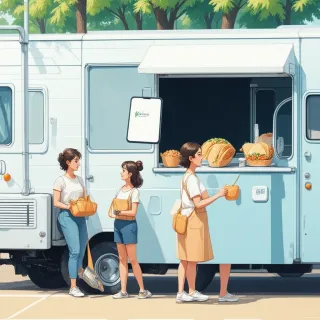
Stick a small QR near the service window and point it to a card with Heading set to your truck name, Subheading to “Tacos al pastor, birria, and weekend specials,” and Vehicle Photos filled with your three best menu-board or taco close-ups. Use Description for today’s specials and combo prices, and add Phone so people can call ahead while they are still in line. Because the code is dynamic, you can swap in a new Tuesday special without touching the printed sticker.

Generator door market schedule

Generator door market schedule

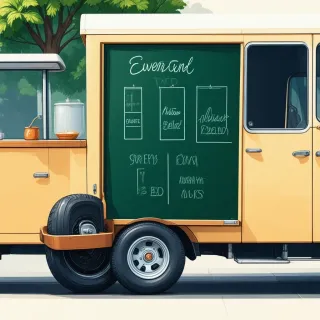
Put the code on the generator door where people wait for their coffee, and build the card around your weekend schedule: Heading with the cart name, Subheading with “Espresso, cold brew, and farmers-market hours,” and Description with the next three market dates, times, and locations. Add Website to your Instagram or a public Google Calendar so regulars can confirm where you will be. Update the schedule from QRDrobe on Monday, and the same printed sticker still shows the new weekend.

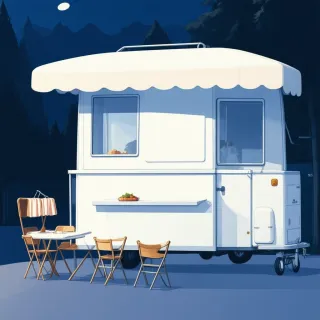
Catering awning QR

Catering awning QR

Hang a larger QR under the awning and make the card a catering lead page: Heading as your trailer or business name, Subheading as “Wedding, office, and block-party catering,” and Vehicle Photos showing full setup and buffet spreads. Put package options, minimums, and lead times in Description, then use Email for booking inquiries. Skip mileage, VIN, and engine unless the trailer itself is for sale, and change pricing or package details anytime without reprinting the awning sign.

Takeout bag booking sticker

Takeout bag booking sticker

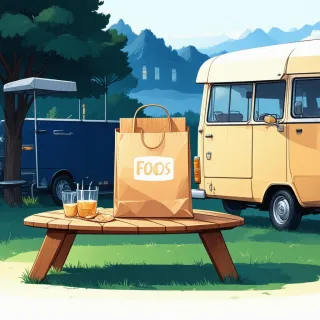
Put a small sticker on every takeout bag and link it to the full profile card: Heading with the truck name, Subheading with your cuisine or one-line tagline, and Vehicle Photos with your best food and truck shots. In Description, include the current menu highlights, catering packages, and a line like “Planning an event? Book the truck here,” with Phone and Email ready for follow-ups. After a big event, edit the description to thank guests and promote holiday catering, and the bag stickers already out there still lead to the updated card.

Food truck QR code menu and booking: quick answers before you print

Create a Vehicle Info card in QRDrobe (free to start), set the Heading to your truck name, add your best menu and truck photos to Vehicle Photos, and write your menu highlights in the Description field. If you have a full menu elsewhere, put that link in the Website field so customers can tap through. Then style and download the QR code and place it on your service window or truck side. Because it's a dynamic code, the printed QR opens an editable mobile landing page, not a frozen copy.