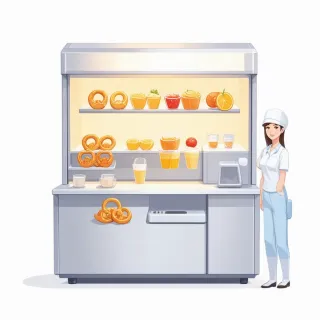

Zoo and Theme Park Map qr code for Daily Schedule

Yes — a zoo and theme park map qr code for daily schedule can change after the map is printed. With QRDrobe's Restaurant/Cafe Menu dynamic template, the printed code opens an editable card you update each morning with animal feedings, showtimes, temporary exhibits, and food-kiosk specials. The same printed code keeps working, and you can see how many guests scanned it.

Free while in beta

Make your own in minutes

Create a mobile page, update it anytime without reprinting, and track every scan.

Create your dynamic QR code →

Free account, no credit card • Up to 25 cards during beta

Can a zoo and theme park map qr code for daily schedule stay current after printing?

Yes, a zoo and theme park map QR code for daily schedule can stay current after printing when you make it a QRDrobe dynamic QR code. The printed code points to an editable card, not a fixed URL, so the same code on hundreds of paper maps keeps working after daily feedings, showtimes, temporary exhibits, and food specials change. You update the card, and visitors who scan yesterday’s map still get today’s schedule.

Set this up in the Restaurant/Cafe Menu template, which works as a live schedule because the Menu Sections field lets you build a structured list of sections, items, prices, and descriptions. In the app, enter something like “Live Park Schedule” in the required Name field, upload a park map or seasonal image as the Cover, and use the Website, Phone, Email, and Address fields if you want visitors to reach guest services or the ticket page. The required Menu Sections field is where the schedule lives: create sections such as “Animal Feedings,” “Shows & Talks,” “Temporary Exhibits,” and “Food Kiosk Specials.” Each item has a title, description, and price area, so you can put the time in the title, the location and details in the description, and “Free with admission” or an actual price in the price area.

Your morning update becomes a quick card edit, not a print job. Say the sea lion show moves indoors because of rain. Open the card, edit that item in the Shows & Talks section, and the change appears for every printed map, kiosk sign, or brochure carrying the dynamic QR code. You can also rotate the Cover image for a seasonal look without breaking the code, and previously generated dynamic QR codes do not expire when you edit the card. The QR code itself carries a short link to your card; the card is what you change.

QRDrobe tracks scans from the same printed code, so you can see whether visitors are actually opening the schedule from the map. That makes it easier to judge whether a seasonal map run is earning its cost. If scans rise after you distribute a new batch or promote the code at the entrance, you know the printed piece is working. You keep that scan data even as you edit the card, because you are not generating a new code each morning or each time a showtime changes.

Common mistakes to avoid: do not generate a new QR code every time the schedule changes, because that forces you to reprint or replace codes and defeats the purpose. Do not print the day’s schedule inside the QR image itself as a static code; the whole point is that yesterday’s map should still open today’s card. When you fill Menu Sections, keep item titles short and scannable, but use the description for the practical details visitors need: which zone, what time, whether it is included with admission, and whether it depends on weather. If you manage a large park, you can use one card for the whole property or one card per zone. Either way, label sections clearly so a guest can find “Keeper Talks” without scrolling through food specials.

Before you commit to a seasonal print run, test the card on a phone and scan the QR on the actual map paper. Make sure the QR is large enough to scan at a normal arm’s length, has enough contrast with the map background, and is not placed over a fold or crease. Style and download your QR code from QRDrobe for print, and keep that file for future map runs. If the schedule changes later, do not re-download a new code just because the times changed; the existing dynamic code already points to the live card. That is how one zoo and theme park map QR code for daily schedule stays useful from opening day to the last scan of the season.
How to fill the QRDrobe Menu template for a day-of-visit park schedule

  1. Step 1

    Set a Cover image guests recognize from the printed map

    In the Cover field, upload a clean park map or a simple “Today at the Zoo” header that matches your printed materials. Keep the file readable at mobile width so visitors immediately know they scanned the right code. Avoid a dense fine-print map here; put practical schedule detail in Menu Sections instead.

  2. Step 2

    Name the card like a day-of-visit schedule

    Use the required Name field for a short headline such as “Zoo Daily Schedule: Saturday, June 14” or “Today’s Shows, Feedings & Kiosk Specials.” This is the first text guests see on the mobile card, so make the date and purpose obvious. Change it each morning along with the schedule.

  3. Step 3

    Fill Phone, Email, Address, and Website for wayfinding and help

    Put the park entrance or guest-services address in Address, a same-day info line in Phone, and a guest questions inbox in Email. Use Website for your official park page or visitor info page, not a third-party ticketing link unless that is where you want visitors to go. If you do not have a public phone or email, leave those fields empty rather than pointing guests to a dead end.

  4. Step 4

    Link only the social channels you update during park hours

    In Social Media Links, add the park’s Instagram, Facebook, or X account only if your team actually posts weather delays, crowd notes, or last-minute show changes. This works better as one or two live channels than a long list of stale profiles. Guests will treat these as real-time extensions of the printed QR code.

  5. Step 5

    Build Menu Sections as time-and-place schedule blocks

    Use the required Menu Sections field to create separate sections for Animal Feedings, Shows & Presentations, Temporary Exhibits, and Food-Kiosk Specials. In each section, make item names scannable and specific: “11:00 AM Sea Lion Feeding — North Pier” or “1:30 PM Bird Show — Main Lawn.” Put practical details in the item description: arrive 10 minutes early, standing room only, included with admission, or “while supplies last.” For food specials, use the item price field when there is a fixed price, and put “ask at kiosk” in the description if prices vary.

  6. Step 6

    Style, download, and check the live QR on a phone

    Style the QR code to match your park sign or map, then download it for print or sharing. Open the code on a phone outside the editor and tap through the card exactly as a guest would: check that the Cover image loads, section order makes sense, and times, prices, and links are correct. Fix anything that looks cramped or confusing before you send the file to print.

  7. Step 7

    Print once, then update the same card every morning

    Place the same QR code on seasonal paper maps, park entry signs, or kiosk window clings, and do not reprint when details change. Each morning or before opening, edit the card in QRDrobe—usually the Name date, Menu Sections, and today’s Food-Kiosk Specials—and the existing printed code keeps pointing to the updated page. Check scan analytics to see which map locations or days get the most use, then adjust your schedule or placement next season.

Clever ways to reuse the same dynamic park map QR for changing daily needs

The same dynamic QR keeps working when you edit the card, so your printed map doesn't have to be a one-use schedule. Here are four specific ways to reuse QRDrobe's Menu Sections, Cover, and Social Media Links for changing park needs.

Daily kids' ranger trail

Daily kids' ranger trail

Turn Menu Sections into a changing trail guide. Name each section for the day or zone, list trail stops as items, and put the clue or checkpoint instruction in each description. Swap the Cover image to show the day's ranger badge or mascot so families know it's fresh when they scan.

Members-only previews board

Members-only previews board

Use a Menu Section called “Members' Early Access” to list preview time slots or after-hours talks as line items. Add the member entrance or check-in detail in each description, and use Social Media Links to point members to your private group or RSVP post. Update it without touching the paper map.

Food-kiosk specials board

Food-kiosk specials board

Use one Menu Section named “Today's Kiosk Specials.” Make each item a dish, put the real price in the price field, and write which kiosk and what's in it in the description. Swap the Cover image to a close-up of the day's special so the scan feels worth it.

Showtime rain plan

Showtime rain plan

On days when outdoor shows move, add a Menu Section called “Rainy Day Schedule.” List indoor shows, covered feeding talks, or pop-up activities as items, and put the new location or time in each description. Change the Cover image to a rain-plan badge so staff can tell guests to rescan the same printed map code.

Why print one map QR and edit the card instead of reprinting maps

Seasonal maps stay current

Seasonal maps stay current

A static QR on a paper map turns into a dead end the moment a showtime changes or a temporary exhibit closes. QRDrobe's dynamic template points that printed code to an editable card, so you can update the Menu Sections for feedings, shows, and food specials without changing the map. Guests who grabbed a map in May can scan the same code in August and see today's schedule, not the old one. That means seasonal print runs survive schedule changes instead of becoming outdated in the rack.

Edit any morning

Edit any morning

When a keeper moves the sea lion feeding from 1:30 to 2:15, you don't call the printer; you open the QRDrobe card in the app and edit that Menu Section. The change is live for every map already handed out because the QR code just opens the card, not a fixed PDF. The tradeoff is that somebody has to make the update before park open, but it takes minutes, not a reprint cycle. The printed code never goes stale as long as the card is kept current.

Know what guests check

Know what guests check

Scan analytics on the dynamic QR show whether visitors actually open the daily schedule from the paper map or leave it folded in a pocket. If you download separate QR codes for the entrance, food court, and guest services map racks, you can compare which placements draw the most scans. That helps you decide where to hand out more maps and which Menu Sections deserve the top spots. All of this happens on the same printed codes that keep working after each schedule edit.

Skip static reprint costs

Skip static reprint costs

A static QR code makes every schedule change a reprint decision, and old maps in racks keep pointing to outdated times until you throw them out. QRDrobe is free to start, so you can pilot one zoo guide or park map on the Restaurant/Cafe Menu template without a budget request. The tradeoff is that the card is a structured mobile page, not a full map replacement—guests still use the paper map for directions, but the QR gives them a live schedule layer. Because the card behind the code stays editable, the same printed map run keeps working through daily changes.

Before you print: 7 park map QR mistakes that break the daily schedule

A zoo and theme park map QR code for daily schedule only works when the printed side and the QRDrobe card stay in sync. Before you send seasonal maps to print, the seven breakers are: weak contrast, a code that is too small or placed across a fold, glossy lamination, empty required Name [text] and Menu Sections [menuSections] fields, schedule entries that read like a PDF instead of a menu, checking only the designer preview instead of the downloaded QR, and forgetting that the same printed code has to be scanned in park lighting at arm’s length.

First, test contrast and size on the exact folded or creased map stock. The QR should be dark-on-light, with enough quiet space around it, and large enough to survive the paper grain and fold wear. Place it on a flat panel rather than across a tri-fold or center crease; a code that bends across a fold can skew scanner focus. Print a single map proof at final size and scan it with your phone in shade and bright sun before approving a run.

Lamination is another common break point. A high-gloss laminate or plastic sleeve can turn the code into a mirror under park lighting, especially near entrance gates or midday sun. Use matte laminate, leave the QR window uncoated if possible, and scan the code at an angle after it is finished. If the map is glossy everywhere, add a white or light block behind the code to restore contrast; don’t rely on the code looking fine on your monitor.

Before downloading and styling, fill the required fields. QRDrobe asks for Name [text] and at least one Menu Sections [menuSections] entry; if either is empty, the live card can feel unfinished or blank when guests scan. Use Name [text] as the schedule title — for example “Riverside Zoo — Today, May 18” — and use Cover [coverImage] for a clean park map or a photo that matches the day. Optional fields like Phone [text], Email [email], Address [text], and Website [url] are useful for “get me here” or guest services, but they don’t replace the required menu sections. Social Media Links [dynamicLinks] can sit at the bottom for updates, but the daily schedule should be inside Menu Sections [menuSections].

Fill Menu Sections [menuSections] like a scannable schedule, not like a brochure page. Make each section a time block or experience type: “Animal Feedings,” “Shows & Keeper Talks,” “Temporary Exhibits,” and “Food Kiosk Specials.” Put the name of the experience in the item field, the start time in the price field, and location or note in the description — for example, item “Sea Lion Feeding,” price “11:30 AM,” description “North Pier; arrive 10 minutes early.” This is the same structural approach as a restaurant menu, but it gives guests tap-friendly details instead of a dense PDF grid, and it lets you edit one section without touching the rest.

After you style and download the QR code, verify the live card from the actual downloaded file, not just the in-app preview. Scan it with two phone cameras, once from a folded map proof and once from a slightly creased or laminated copy. Confirm it opens to the correct card — not QRDrobe’s sample-menu example or a draft — and that the day’s Menu Sections [menuSections] show up immediately. This is also the moment to check that the QR is not embedded behind a stylized cover image or squeezed next to other printed elements.

Finally, treat the printed map as a live channel, not a static sign. After the first print run, you can update the same card any morning from the app — add a sold-out food special, change a showtime, or swap a temporary exhibit — and the previously printed dynamic QR code keeps working. Before each print batch, verify Name [text] and Menu Sections [menuSections] are current for the date the maps will be in guests’ hands, then spot-check a printed sheet once more. That final scan, on real map paper, is the difference between a map that ages gracefully and a code that breaks the daily schedule before the park opens.

Frequently asked questions about zoo and theme park map qr code for daily schedule

Yes. A dynamic QR code points to your QRDrobe card, so the printed code does not need to change when the schedule changes. Edit the Menu Sections in the card any morning, and the same QR on already-printed maps will open the updated daily feedings, showtimes, exhibits, and specials. That keeps a seasonally printed map useful until the next print run.