Plant Nursery Inventory QR Code Menu with QRDrobe

A plant nursery inventory qr code menu is a mobile landing page your customers open by scanning one printed code. In QRDrobe, you build it with the Restaurant/Cafe Menu dynamic QR template: create Menu Sections for indoor plants, outdoor plants, trees, shrubs, herbs, flowers, and seasonal arrivals, then edit availability and care notes anytime. The same printed QR keeps working after changes, and you can see how often people scan.

Free while in beta

Make your own in minutes

Create a mobile page, update it anytime without reprinting, and track every scan.

Create your dynamic QR code →

Free account, no credit card • Up to 25 cards during beta

How do I make a plant nursery inventory qr code menu in QRDrobe?

  1. Step 1

    Choose the Restaurant/Cafe Menu template

    In QRDrobe, start a new card and select the Restaurant/Cafe Menu template. It gives you the Cover, Name, Social Media Links, Phone, Email, Address, Website, and Menu Sections fields you need for a live nursery inventory card.

  2. Step 2

    Name the card and add a phone-friendly cover

    Set the Name field to your nursery name, such as “Maple Lane Nursery,” and upload a Cover image that looks good on a phone screen. Use a clear photo of your greenhouse, plant benches, or a colorful seasonal display so customers recognize you right after scanning.

  3. Step 3

    Create inventory Menu Sections

    In Menu Sections, add sections named Indoor Plants, Outdoor Plants, Trees, Shrubs, Herbs, Flowers, and Seasonal Arrivals. You can reorder the sections to match how customers actually browse, such as putting Seasonal Arrivals first during spring planting.

  4. Step 4

    Add plants as items with prices and care notes

    Under each section, add an item for every plant or tray you currently have. Put the plant name in the item title, set the price in the price field, and use the description field for a one-line care note like “Bright indirect light; water weekly” or “Hardy to zone 7; full sun.”

  5. Step 5

    Fill in contact and location details

    Add your Phone, Email, Address, and Website so customers can call, check directions, or confirm hours before visiting. If you post new arrivals on Instagram or Facebook, add those to Social Media Links; they will appear as tap-friendly links on the mobile card.

  6. Step 6

    Save and preview the mobile card

    Save the card, then open the live preview or test the QR code on your phone. Scroll through the Menu Sections and a few items to make sure the cover doesn’t push useful inventory too far down, prices are readable, and care notes are short enough to scan quickly.

  7. Step 7

    Style and download the QR code

    Use QRDrobe’s styling options to make the QR code fit your sign, plant tag, or checkout display, then download it for print or sharing. Because this is a dynamic QR code, the printed code points to your editable card, not a frozen PDF of today’s inventory.

  8. Step 8

    Print it, place it, and update it later

    Print the QR code on signage near the entrance, seasonal arrival tables, plant benches, and the checkout counter. When inventory changes, open the card in QRDrobe and edit the Menu Sections, prices, or care notes; save the changes and the already printed QR code keeps working without reprinting. You can also check scan counts to see how often customers open the card.

What should you put on a nursery QR menu so customers browse before the drive?

For a plant nursery inventory QR code menu, the simplest way to get customers browsing before the drive is to treat the card like a live availability board, not a static brochure. Use the Cover field for a recognizable nursery photo, make the required Name field say your nursery name and city, break Menu Sections into plant categories customers actually shop by, and put light, water, mature size, and stock status in each item description. Then add Address and Website so people know where and when to come, and include Phone or Email for the leftover questions. Because QRDrobe uses a dynamic QR code, the printed sign, shelf tag, or flyer keeps scanning to the same editable card even after your staff updates inventory all season.

Start with Cover and Name because those are the first trust signals on a phone. A greenhouse bench, entry sign, or loaded plant cart works better than a logo alone because it says 'this is the place you're about to visit.' Choose a photo that stays clear when cropped small; avoid tiny text or a busy collage. For Name, include the nursery name plus the city — something like 'Fern & Frond Nursery — Raleigh' — so a scanner immediately knows the card is local, especially if the QR is shared on a community page or plant swap group. If your nursery has a common name, adding the city also prevents confusion with a similarly named garden center across town.

Use the required Menu Sections as the inventory backbone. For a nursery, sections like Indoor Plants, Outdoor Plants, Trees, Shrubs, Herbs, Flowers, and Seasonal Arrivals map directly to the way customers think, not the way your vendor catalog is organized. Indoor Plants can carry houseplants and tropicals; Outdoor Plants can hold landscape perennials, annuals, and ground covers. Trees and Shrubs deserve separate sections because those customers often compare mature size and light tolerance. Herbs and Flowers are quick stops for edible and cut-flower shoppers. Keep Seasonal Arrivals for whatever just came in, from spring tomato starts to fall mums, and update it often. If a plant fits two categories, put it in the category a customer would check first and mention the other use in the description instead of duplicating it everywhere.

The item descriptions are where you prevent the most phone calls. For each plant, include light, water, mature size, and stock status in plain language. For example: 'Monstera deliciosa, 6-inch pot, $24. Bright indirect light; water when the top inch of soil is dry; climbs to 8 feet indoors. In stock: 14.' For a shrub, write 'Red twig dogwood, 2-gallon pot, $38. Full sun to part shade; moist soil preferred; reaches 6 to 8 feet tall and wide. 9 ready now, 20 more arriving Friday.' Avoid vague phrases like 'easy care' or 'needs some sun' because that still leaves customers guessing. Stock status can be simple: 'in stock,' 'low stock,' 'sold out until next week,' or 'available at the front bench only.' Staff can update these status lines after weekend sales without touching the printed QR code, which is the whole point of a dynamic card for a plant nursery inventory QR code menu.

Do not skip Address and Website. The Address field is where a customer confirms you are close enough to justify the drive, so include the full street address and, if your hours change by season, add current hours in that same text field — for example 'Open Tue–Sun 9–5, closed Mondays.' Use the Website field to link to your nursery's main site, a Google Maps directions page, or a page with events and parking info. If you sell from a seasonal pop-up or market stall, put the current market location and hours in Address and update it when you move. A blank address on a card meant to help people visit is the fastest way to lose a motivated customer.

Add Phone and Email for the questions that remain after browsing. Use a main nursery line rather than an owner's personal mobile, so a staff member can answer about current availability or hold a plant if that is something you offer. Email works well for non-urgent questions, custom orders, or landscape clients who want a list. But the real labor-saving move is to keep the card itself current: when the descriptions already say light, water, size, and stock status, customers call with specific questions instead of 'do you sell indoor plants and how much water do they need.' A phone number without a stocked inventory list simply invites the same phone tag you are trying to avoid.

Before you print a large batch of QRDrobe QR codes, scan one with your own phone and walk through the card the way a customer would. Check that the Cover crops well, the Name and city are readable, the Menu Sections are easy to scroll, the Address and Website open correctly, and the Phone number is correct. Then print the QR once on your entrance sign, checkout counter, plant benches, and seasonal flyers. When availability changes, staff edit the card in QRDrobe; the printed codes keep working, and scan tracking shows you which signs or materials actually send customers to the menu. That closes the loop between what is in stock and what people expect before they leave home.

How do staff update a dynamic nursery inventory qr code without reprinting?

The short answer to “How do staff update a dynamic nursery inventory qr code without reprinting?” is: they don’t touch the printed code at all. With QRDrobe’s Restaurant/Cafe Menu template used as a plant nursery inventory QR code menu, the printed QR code points to the same editable card, not to a frozen menu file. When a shipment arrives or a plant sells out, you open the existing card, edit the relevant Menu Sections and item descriptions, and save. The code on your entrance sign, plant stakes, and takeaway flyers keeps scanning because its destination never changed — only the live card content changed.

Inside the card, treat Menu Sections like the zones of your nursery. You might keep sections for Indoor Plants, Outdoor Plants, Trees, Shrubs, Herbs, Flowers, and Seasonal Arrivals. When a new batch of lavender, fruit trees, or tomato seedlings arrives, go into the matching section and add the item with its name, price, and a description that doubles as a care tag — for example, “4-inch echinacea, full sun, drought-tolerant once established.” If a plant sells out, remove the item from that section or edit the item description to say “sold out for now; next herb delivery Tuesday.” The Name field stays as your nursery name, while Phone, Email, Address, Website, and Social Media Links stay the same across updates.

Set a simple update rhythm so the card doesn’t lag behind the benches. Many garden centers update Seasonal Arrivals weekly on Thursday or Friday, then move sold-out herbs and bedding plants out of the menu before the weekend rush. Fast-moving 4-inch annuals might need a twice-weekly check. After you save, use the scan tracking in QRDrobe to see whether customers actually checked the card before their Saturday visit. If scans spike on Friday evening but not Tuesday morning, you know the pre-weekend update is doing its job. That beats guessing whether the printed QR code is still relevant.

The most common mistake is creating a new QR code every time the inventory changes. That forces you to reprint signs, plant stakes, and flyers, which is exactly what a dynamic nursery inventory QR code menu avoids. Another mistake is leaving sold-out plants in a section with no note, so customers walk in expecting a plant that’s been gone since Wednesday. If you’re not sure whether to delete or annotate, keep the item out of the visible menu rather than showing a stale price. It’s better to have five accurate items in Herbs than fifteen items where ten have zero stock.

Remember that the code is tied to the card, not to the current week’s content. That means a laminated QR code at the front gate, a small code on a reusable plant stake, or a code printed on seasonal flyers can all stay in place while staff edit the card in the app. If you want to refresh the look for spring, you can also update the Cover image on the card to show what’s blooming now, and then style and download a new QR code only when you have new materials to print — not because the inventory changed. If you create a whole new card for the next growing season, you’ll get a new code and will need to distribute it again, so reuse the current card whenever possible.

Before a busy weekend, do a final pass. Open the card, check each Menu Section with fresh eyes, remove anything that sold out during the week, add new Seasonal Arrivals, and update the item descriptions for plants that now have care notes or size changes. Save, then scan one of your existing printed codes with your own phone to confirm the saved changes are live. If the card still opens with the old text, wait a moment and refresh — but do not reprint the code. The point of the dynamic template is that the printed nursery inventory QR code stays the same while the menu changes underneath it.

Clever ways to use one dynamic nursery QR card beyond the front gate

Think of your QRDrobe card as the live inventory board you print once and update everywhere. Put the same QR where customers browse, buy, or ask questions, and use the Menu Sections to keep one current plant list flowing through every placement.

Front gate sign

Front gate sign

Print the QR on your main entrance sign so early-bird customers can check today’s plant list before they even park. Because the code points to your QRDrobe card, the same Menu Sections you update for indoor plants, shrubs, or herbs are the ones they see. If a frost wipes out the tender annuals, edit that section on your phone and the gate sign still works — no reprint, no “sorry, we’re out” surprises.

Delivery van window

Delivery van window

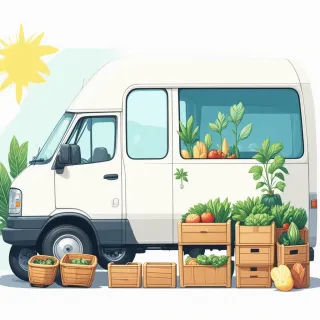
Turn your delivery van or truck into a rolling availability board with a QR decal on the side or back window. When you’re unloading at a farmers market or making a landscape delivery, nearby customers can scan and browse the same live card. Put “This week’s truck” plants in the Seasonal Arrivals Menu Section, then move them out when the run changes. The printed window code keeps working because it’s dynamic.

Bench labels & counter card

Bench labels & counter card

Stick the same QR on plant bench labels and keep a laminated copy at the checkout counter. The card can be organized by Menu Sections like Trees, Herbs, or Flowers, so a customer standing in the herb aisle sees exactly what’s in stock right now. Staff can update quantities or care notes between customers without touching the printed labels. A counter card gives your team a single thing to point at when someone asks “what’s new this week?”

Email signature & flyers

Email signature & flyers

Add the same QR to your email signature, event flyers, or garden club handouts and let the card change behind the scenes. Use the Seasonal Arrivals Menu Section as a rotating specials list for plant sales or propagation workshops, and update it once without re-sending anything. Because the dynamic code keeps working after edits, a February flyer can still show July’s current herbs and annuals. Your one card stays fresh in every inbox and on every printed handout.

Before you print: 6 mistakes that make a nursery availability QR card harder to maintain

Before you print your plant nursery inventory QR code menu, a few small setup choices will make the card easier for customers to browse and far less annoying for your team to maintain. QRDrobe's Restaurant/Cafe Menu dynamic QR template works as a live nursery availability card: you organize Menu Sections into categories like indoor plants, outdoor plants, trees, shrubs, herbs, flowers, and seasonal arrivals, then staff edit the card as stock changes. Because the QR code is dynamic, the printed code keeps working after every edit, and scans are tracked in the app. Here are six mistakes to avoid.

The first mistake is stuffing every plant into one long Menu Section. When customers scan a sign on a table or a stake in the greenhouse, they are usually standing in the aisle, not sitting down for a long read. A single 'Plants' section with eighty items turns a quick availability check into a scroll. Instead, split Menu Sections the way a shopper thinks: Indoor Plants, Outdoor Plants, Trees, Shrubs, Herbs, Flowers, and Seasonal Arrivals. You can go further if your nursery has depth, for example 'Shade Perennials' or 'Spring Veggie Starts.' Each section can hold its own items, prices, and one-line descriptions, so a customer looking for a rosemary plant can jump to Herbs instead of hunting through conifers.

Another common mistake is using a static QR generator because it feels quicker. A static code bakes the destination content into the code itself, so the moment you sell out of a flat of tomatoes or change a price, the printed code is out of date. You either live with wrong information or reprint every sign. QRDrobe's dynamic template avoids that: the printed QR code points to an editable mobile landing page, and your card edits do not kill previously generated dynamic QR codes. That means one printed label on a bench can stay in place all season while your staff updates Menu Sections from the app after a delivery or a busy weekend. Scan tracking also shows you how often the card is scanned, so you can decide whether to reorder labels or move the QR code to a better spot.

Leaving the Address or Website fields blank is a quiet but costly mistake. A customer who scans your nursery availability card may be comparing you with another garden center while standing in a parking lot or browsing from home. If Address is empty, they have to search for you separately, and some will not bother. Fill in the Address field on the card so the location is visible the moment the page opens. If you have a website with a full plant library, seasonal care blog, or event calendar, add it to the Website field. Even a simple nursery homepage helps customers trust the card and find deeper care information without making staff answer the same questions by phone.

Section names like 'Section 1' or 'Menu 1' also make the card harder to maintain than it needs to be. Those default labels force customers to tap into each section just to learn what is inside, and they make it harder for your team to remember where to move items when stock shifts. Name Menu Sections as the actual shopping categories you use in the nursery: Indoor Plants, Shrubs, Herbs, Seasonal Arrivals. Be specific with item names too. '3-inch Lavender Munstead' tells customers more than 'Lavender,' and 'Grafted Tomato Sungold' helps a weekend gardener choose before they walk in. Clear names reduce follow-up questions and make the card more useful as a self-service availability check.

Forgetting to update sold-out seasonal arrivals is the mistake that most directly disappoints customers. Seasonal arrivals are exactly the section people scan for, and it changes the fastest. If your card still lists a spring annual after the last flat sold out, someone may drive across town for it. If you pull it from the card but forget to add it back after a restock, you lose a sale. Set a simple update rhythm: after opening, after a weekend rush, or before you post a new availability sign, open the card and adjust the Menu Sections that moved. Since QRDrobe keeps the printed QR code working after card edits, the only real work is the habit, not the reprinting.

The sixth mistake is choosing a dark or busy Cover image. On a phone screen in sunlight, a dark photo of foliage or a crowded greenhouse shot can make the card's opening screen feel heavy and hide the text that follows. Pick a cover that looks clean at small size: a bright plant close-up, a simple nursery sign, or a flat lay of pots against a light background. After you style the card, run a final checks list before printing. Test the QR code on a phone from the distance a customer will hold it. Keep item text short enough to scan in a few seconds—save full care guides for the Website link you add to the card. And verify the printed QR code is large enough for the surface where it will appear, whether that is a 4x6 bench card, a stake, or a larger sign near the entrance. A readable QR code and a card you can update in minutes is what makes a plant nursery inventory QR code menu actually useful all season.

Why the QRDrobe Restaurant/Cafe Menu template fits a live plant availability card better than a PDF

Benches become sections

Benches become sections

QRDrobe's Menu Sections are the backbone of the card, and they're a natural match for how your nursery is already organized. Name them Indoor Plants, Outdoor Plants, Trees, Shrubs, Herbs, Flowers, and Seasonal Arrivals so customers can jump straight to the bench they came for. Because this is a dynamic QR, every section edit happens on the card after the code is printed — add a new herb section or reorder benches without changing the sign that points to it.

Care notes in item text

Care notes in item text

Use each item's description field for the kind of notes customers ask about most: light needs, water needs, hardiness zone, current size, or "still rooting — no sales this week." When stock or advice changes, you update the item on the same editable card, and the printed QR keeps serving the new note. That beats a PDF where the care advice is frozen the moment you export it.

No stale PDF snapshots

No stale PDF snapshots

A PDF menu is a static snapshot: the moment you save it, something on the bench will change, and you'll be reprinting codes or telling customers the list is old. A QRDrobe dynamic template sends the phone to an editable mobile landing page instead, so a QR on a bench stake, pot label, or paper handout can keep working all season. You edit availability and care text after the code is already in the world, and customers see the current card.

Scans show what's moving

Scans show what's moving

Since QRDrobe tracks scans on the dynamic card, you can see interest before people arrive — for example, whether a Seasonal Arrivals section gets checked heavily after you add bare-root fruit trees. That same card is editable after the QR is printed, so you can watch how scan interest shifts when you mark a crop sold out or add a new batch. You can start free, so it's easy to try with one bench section and expand as staff get comfortable updating it.

Plant nursery inventory qr code menu: quick answers for nursery owners

Yes, as long as you or your staff keep the card updated. A dynamic QR code leads to your QRDrobe card, so customers can open the current Menu Sections you’ve saved and see what’s listed, priced, and described before they drive over. It won’t auto-sync with a separate POS or plant database, but it’s a fast way to reflect what you type into the card yourself.