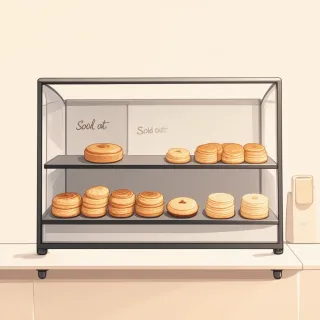
QR Code for Cheese Shop Menu That You Can Edit Daily

Yes — you can create a qr code for cheese shop menu that always shows today’s selection. QRDrobe’s Restaurant / Cafe Menu dynamic QR card puts one editable mobile menu behind a printed code, so the same sticker or shelf sign keeps working as you update Menu Sections daily. Track scans while soft cheeses, hard cheeses, imported selections, local producers, charcuterie pairings, and seasonal specialties change without reprinting.

Free while in beta

Make your own in minutes

Create a mobile page, update it anytime without reprinting, and track every scan.

Create your dynamic QR code →

Free account, no credit card • Up to 25 cards during beta

How to Keep a QR Code for Cheese Shop Menu Current as Wheels Sell Out

Here's the daily-update strategy in one sentence: a QRDrobe Restaurant / Cafe Menu QR code for cheese shop menu points to an editable mobile card, so the printed code stays the same while your Menu Sections change. When a soft cheese sells out, you edit that section and remove the item or add a “sold out today, back Friday” note in the description. When a new hard cheese arrives, add it under Hard Cheeses. Prices, descriptions, and section order change on the same card, and anyone who scans an old code sees the latest version. Scan analytics show what customers look at, so you can move a busy charcuterie pairing block higher instead of guessing.

Set the card up once with the fields that matter for a cheese counter. Name is required—use your shop name or a short phrase like “Thursday Cheese Case.” Cover can be a clean photo of the current board or a close-up of a label. Then build Menu Sections around how customers shop, not how you order from suppliers: Soft Cheeses, Hard Cheeses, Imported Selections, Local Producers, Charcuterie Pairings, and Seasonal Specialties. Under each section, list items with price and description details that help customers choose: milk type, age, texture, or a pairing note like “ask for honeycomb.” Fill Phone, Email, Address, Website, and Social Media Links too, because a customer standing in front of the case may want to call about a preorder or follow new arrivals.

Make the update part of your opening or closing routine. If a wheel sells out midday, do not create a new QR code or reprint a table tent. Open the existing card and edit the relevant Menu Section. For example, if Harbison is gone by 1 p.m., cut it from Soft Cheeses or change its description to “sold out today.” If a new local tomme arrives, add it to Local Producers with the producer name and price. If a price changes because a wheel cost more than expected, update that item. The QR code on your counter, window sticker, or paper insert keeps working, even if you downloaded and printed it weeks ago.

One common mistake is keeping a separate printed menu and a separate QR menu, then updating only one. The QR should be your live menu; the printed page can simply say “scan for today’s selection.” Another mistake is leaving sold-out items visible without a note, which invites questions about cheese you no longer have. Use the description field for a short status line if you don’t want to delete a regular item: “sold out today, next batch Thursday.” For seasonal rarities that appear and vanish, put them in Seasonal Specialties so you can remove or trim that section when the season ends. You can also swap the Cover image to match a new arrival, but the QR never changes.

After a busy Saturday, check scan analytics before deciding what to change. If scans show more customers opening Local Producers than Imported Selections, put local cheeses first or add more local items. If Charcuterie Pairings gets very few taps, move it lower or rename it to something like “Pairings for Tonight.” You do not need a second QR code for a special event; add a holiday section to the same card, then remove or rename it later. Edits to the card do not kill previously generated dynamic QR codes, so any code you downloaded yesterday or last month still resolves to the current menu.

Because the code is dynamic, you can style and download it once for all future materials: a small card in the cheese case, a label on a shelf, a line on a receipt, or a window sign. If you change the card after printing, those materials still open the latest menu. Set the expectation in the store by writing “menu updated daily” near the code so customers know to scan again on their next visit rather than relying on a screenshot. Finally, after any big update, scan the code yourself from your phone to confirm the latest version loads before you put it in front of customers.
How Do I Fill Out the QRDrobe Menu Card Fields for Soft, Hard, Imported, and Local Cheeses?

  1. Step 1

    Start free in the QRDrobe app and pick the Restaurant / Cafe Menu template

    Sign up free and choose the Restaurant / Cafe Menu dynamic QR template. This creates an editable mobile card behind a dynamic QR code, so the printed code will keep working when you change cheeses later.

  2. Step 2

    Use the Cover image to show the actual case or board, not just your logo

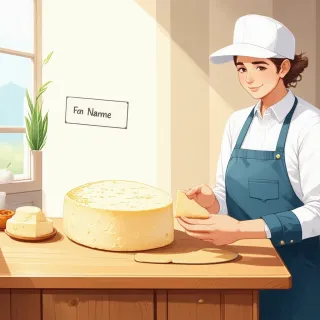
    In Cover [coverImage], upload a clear, well-lit photo of your soft-ripening shelf, the current cheese board, or the counter case. Example: a shot of a triple-cream round next to a handwritten card. This field is optional, but a real photo makes the menu feel like the shop.

  3. Step 3

    Make the required Name field the menu's helpful title

    In Name [text], enter the title customers should see at the top of the card. Example: 'Marble & Rind Cheese Shop — Today's Menu' or 'Counter Menu: Soft, Hard, Imported, and Local Cheeses.' This field is required.

  4. Step 4

    Add one-tap ways to reach or visit you

    In Phone [text], Email [email], Address [text], and Website [url], add the details people are most likely to tap. Example: Phone '(555) 214-8810', Email '[email protected]', Address '18 Front St, Portland, ME', Website 'https://marbleandrin.com'. These fields are optional, but include at least phone and address for a shop menu.

  5. Step 5

    Use Social Media Links for proof-of-life and season updates

    In Social Media Links [dynamicLinks], add your Instagram or Facebook link. Example: 'https://instagram.com/marbleandrin' where you post new wheels and sold-out notices. This field is optional.

  6. Step 6

    Build required Menu Sections by style, then list name, price, and a short flavor note

    In Menu Sections [menuSections], create sections like Soft Cheeses, Hard Cheeses, Imported Selections, Local Producers, Charcuterie Pairings, and Seasonal Specialties. Under each, add items with price and description. Example: Soft Cheeses — 'Tunworth, $13/box — British, mushroomy, spoonable.' Hard Cheeses — 'Cabot Clothbound Cheddar, $9/quarter lb — Vermont, crumbly, caramel finish.' Menu Sections is required.

  7. Step 7

    Check the card on your phone, style the QR, and download it

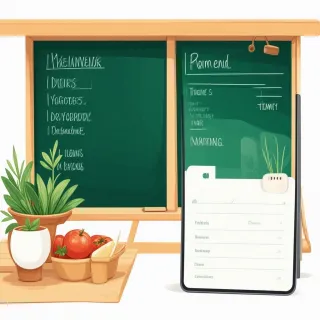
    Preview the mobile card on your own phone to confirm the sections and tap targets look right. Then style and download the QR code in QRDrobe for print or sharing, keeping the download file for counter signs, shelf tags, or a market table card.

  8. Step 8

    Print once and update the card as inventory changes

    Print the QR where customers already pause, such as the cheese case rail, a small tent card at the register, or a clip by the charcuterie fridge. Later, edit Menu Sections in QRDrobe as wheels sell out or new arrivals come in; the existing printed QR will continue to show the latest card without reprinting, and QRDrobe's scan tracking shows how often the code is opened.

Before You Print and Display: A Cheese Shop QR Menu Final Check

Before you put a QR code for a cheese shop menu on a counter tent or in the window, run this final check: open your QRDrobe card, confirm the Menu Sections match the names your customers see elsewhere, update each section to today's actual stock, fill in Phone and Address, print the code at a scannable size with strong contrast, and make sure it links to your editable QRDrobe card, not a static PDF. If one of those fails, a good scan can still end in a bad customer experience.

Start with the Menu Sections field inside the card. A cheese shop will often use sections like Soft Cheeses, Hard Cheeses, Imported Selections, Local Producers, Charcuterie Pairings, and Seasonal Specialties. Use those exact names on the card, on shelf tags, on a chalkboard, and in your social posts. If the counter sign says Soft and Bloomy but the card says Soft Cheeses, a customer looking for a triple cream may think you do not stock it. The same goes for labels like Local Producers versus Vermont Makers, or Charcuterie Pairings versus Board Add-Ons. Consistency costs nothing before printing and saves you from trying to explain a mismatch while the shop is busy.

Because your printed QRDrobe code keeps working as you edit the card, the daily habit is the part that matters. If you sell the last wheel of a seasonal special at 11 a.m. and leave it in the Menu Sections, every scan for the rest of the day advertises a cheese you cannot sell. Make a quick morning pass after you cut and restock: remove sold-out wheels from the relevant section, add new arrivals, and adjust an item description only when you need to say something like available Friday or pre-order at the counter. Do the same when a new shipment lands so regulars scanning the code see it without a reprint. During holiday weeks, add an afternoon pass if the case is moving fast. The dynamic code removes the reprinting problem; it does not remove the need to keep the card truthful.

Print the QR code the way a customer will actually scan it. A code that looks fine on your phone can be too small on a table tent or too low-contrast under warm cafe lighting. For a counter or table card, keep the code a comfortable size and away from folds, seams, or curved edges. For a wall sign or window decal, go larger than you think because people will scan from farther away. Strong contrast is not a design extra: dark modules on a white or light matte background scan best, while pale gray on cream, white on light wood, or navy on black can fail. If you style the code in QRDrobe, re-test after styling and after any lamination. Try an iPhone and an Android phone in the actual lighting and at the actual distance before you print a stack.

Check the contact fields as if you were a first-time customer. The card includes Phone, Email, Address, Website, and Social Media Links, and a cheese shop menu should be more than a list of wheels. A blank Phone field means a shopper cannot call to ask if a certain imported selection is in stock or whether you are open. A blank Address field is worse if your shop is off a side street or tucked behind a market. Fill in the real street address, the phone number someone should call, and your website if it adds directions or ordering details. It is fine to leave Email or Social Media Links empty if you will not monitor them, but do not leave out the two fields that turn a scan into a visit.

Finally, confirm your printed code points to your QRDrobe dynamic card, not to an old menu PDF. A static PDF link might look like a menu, but once the inventory changes, that code either shows yesterday's list or requires a reprint. QRDrobe works differently: scans land on an editable card or mobile landing page, and future card edits do not kill previously generated dynamic QR codes. Scan the final printed test and make sure the destination is the QRDrobe card you edit, with QRDrobe scan analytics available for that code. If someone on your team hands you a PDF and asks you to update the QR, that is a sign the process has drifted away from the dynamic workflow that saves you from reprinting.

Where a Reusable Cheese Menu QR Code Works Hardest in Your Shop

Your one QRDrobe menu card can work from the cheese case glass, charcuterie pairing shelf talkers, local producer spotlights, take-home cheese care cards, and seasonal board inserts—all printed with the same dynamic QR code, so a Tuesday edit to Menu Sections updates every placement at once. Here are four ways to make those placements pull real weight.

Case-glass sell-out tags

Case-glass sell-out tags

Place the QR on a small sticker near the soft-cheese section of the case. In Menu Sections, keep a 'Soft Cheeses' block with only what's cut and wrapped right now, then move sold-out wheels to a 'Gone Today' section or delete them until the next delivery. Because the code loads your QRDrobe card, the update hits that glass sticker without reprinting anything.

Charcuterie pairing shelf talkers

Charcuterie pairing shelf talkers

Print the same dynamic QR on shelf talkers beside prosciutto, speck, and salami. In Menu Sections, create a 'Charcuterie Pairings' section with entries like 'Ossau-Iraty, $14/8 oz — nutty, with 18-month prosciutto.' Swap in a new pairing as soon as you taste a better match. Every shelf talker updates at once.

Local producer spotlights

Local producer spotlights

Use the Cover image to feature this week's local creamery, and use Menu Sections to move a 'Local Producers' block to the top. In each item description, add the farm name, milk type, and age so customers can ask for the story. Keep the QR on a small sign near the local cheese display, and it'll always show the updated spotlight.

Take-home care cards

Take-home care cards

Tuck a small QR card into each cheese paper bag. Point the Menu Sections card to a 'Cheese Care' section where each item description covers storage, serving temp, and how soon to eat it—like 'Bloomy rind: keep in wax paper, serve at room temp, enjoy within 5 days.' When you change your care advice seasonally, the same take-home cards stay accurate.

Why a Daily-Changing Cheese Menu Should Live on a Dynamic QR Card, Not a Static PDF

Print once, update daily

Print once, update daily

A static PDF menu is a snapshot: the moment you sell out of a ripe Époisses or bring in a new wheel from a local dairy, that printed sheet is wrong. With QRDrobe's dynamic Restaurant / Cafe Menu card, the QR on your counter card or table tent keeps pointing to the same editable mobile page, so you can change Menu Sections and item descriptions inside the app and the old printed code still shows today's list. No reprinting, no scribbled-out prices, and no customer asking for a cheese you sold through yesterday.

Track real interest

Track real interest

A PDF stuck on a clipboard gives you no sense of how many people actually viewed it. QRDrobe's scan tracking tells you when the code gets scanned, which helps you see whether your cheese case QR is being used during busy Saturday tastings or quiet Tuesday mornings. That feedback can guide where you place the code, and it still accumulates after the card behind the code has been edited many times.

Sell out without shame

Sell out without shame

Soft cheeses and seasonal specialties have a habit of selling out mid-afternoon; a dynamic card lets you remove an item from a Menu Section or rewrite its description before the after-work rush. Because the printed QR doesn't change, the code on your cheese case, window decal, or menu board keeps resolving to the latest card after dozens of daily edits. Customers see only what is actually on the shelf, so you don't have to apologize for an outdated printed list.

One code, many uses

One code, many uses

When you're happy with the card style, you can download the QR once and drop it into future labels, shelf-talkers, tote bag inserts, or a printed takeaway card. You aren't locked into the first layout or paper size; the same dynamic scan leads to whichever version of the cheese menu you've most recently saved. That means a regular who saved your QR months ago will still see new arrivals and current pairings, not a stale PDF from the season when the first batch was printed.

Frequently Asked Questions About a QR Code for Cheese Shop Menu

Open the QRDrobe Restaurant / Cafe Menu template in the app and name the card, such as 'The Daily Cheese Board.' Add a cover image if you want, then build your Menu Sections with items, prices, and descriptions for soft cheeses, hard cheeses, and pairings. Style and download the dynamic QR code for your printed menu or counter sign, and share the same code digitally.