qr code menu for chocolate shop: Editable and Dynamic

A qr code menu for chocolate shop gives customers a phone-friendly menu behind one printed QR code. With QRDrobe's dynamic Restaurant / Cafe Menu template, you can update boxed chocolates, handmade truffles, seasonal collections, gift baskets, sugar-free options, and holiday specials on the card anytime—the printed code keeps working. Sign up free, fill in your Name and Menu Sections, style the QR code, and you're ready to print.

Free while in beta

Make your own in minutes

Create a mobile page, update it anytime without reprinting, and track every scan.

Create your dynamic QR code →

Free account, no credit card • Up to 25 cards during beta

Can you update a qr code menu for chocolate shop without reprinting the QR code?

Yes, you can update a QR code menu for a chocolate shop without reprinting the QR code when you use QRDrobe's dynamic menu template. The printed code points to an editable mobile landing page, not a locked PDF or a one-off menu image. That means the Cover, Name, Menu Sections, item prices, and seasonal descriptions live inside QRDrobe. When you change a truffle price, add a Valentine's box, or pull a sold-out gift basket, your same printed window cling, table tent, or counter card serves the updated menu on the next scan.

Static QR codes are the usual trap. If you generate a QR code that embeds a link to a current PDF menu, that code dies the moment your case changes. A batch of handmade truffles sells out, you swap a summer collection for holiday specials, or a cocoa supplier changes your price, and the printed code still shows the old page. With QRDrobe, the card behind the code is the editable part. You leave the printed QR code alone and edit the card fields. The code keeps working because it never encoded the chocolate list itself.

Think about the Monday rhythm in a chocolate shop. On Friday you might print table tents for a standard menu. On Monday you decide to feature Valentine's boxes, sugar-free truffles, and a new gift basket. In a fixed-code setup, that means re-exporting a PDF, regenerating a code, and reprinting every tent. In QRDrobe, you go into the Menu Sections field, add or reorder sections, update items and prices, and save. The existing QR codes on window clings, table tents, and register signs keep pointing to the same card, so the next customer sees Monday's menu, not Friday's.

To keep updates clean, use the fields the way a chocolate shop actually works. Name should be the shop name customers trust. Cover can change with the season, so a December scan can open on a holiday chocolate photo while the same printed code stays. Menu Sections is where you build the real navigation: boxed chocolates, handmade truffles, seasonal collections, gift baskets, sugar-free products, and holiday specials. Each section can list items with prices and descriptions. Phone, Email, Address, Website, and Social Media Links should stay current because a customer who scans for a menu may also want to call, email, or see the address.

A common mistake is putting 'Valentine's menu' as a printed label next to the QR code. Better to keep the printed sign evergreen: 'Scan for today's collection' or 'Scan for seasonal boxes and sugar-free options.' The code can change behind the scenes, so your printed sign should not lock you into one holiday. Another mistake is re-uploading a new Cover and then generating a new QR code for it. You don't need to. QRDrobe dynamic QR codes are designed so future card edits do not kill previously generated codes. Update the Cover, prices, or sections and keep using the same download.

Scan tracking gives you a practical check when you run a seasonal push. You can see whether scans happen after you update a holiday collection, which helps you decide if the same printed placement is worth keeping at the counter or on the door. QRDrobe is free to start, so you can build the menu card, style and download a QR code for a table tent, and test the update flow before ordering a larger print run. You sign up in the app, fill the required Name and Menu Sections, and replace a sample link or menu with your own.

Before you print anything permanent, do a final-check scan from the same material you will place: open your phone camera, scan the code, and confirm the card loads quickly and shows the sections in the order you want. Change a price or move a holiday special into the first Menu Section, scan again, and you should see the update without touching the printed code. That is the practical test for a chocolate shop menu that can move from boxed chocolates to Mother's Day gift baskets without a reprint.

How to set up your chocolate shop menu in QRDrobe, field by field

  1. Step 1

    Add a clean cover photo

    Open the Restaurant / Cafe Menu template and upload a close-up to Cover [coverImage]. Use the current seasonal box, counter display, or a finished truffle tray so people recognize your shop, and keep the background simple so it looks appetizing on a phone.

  2. Step 2

    Name the menu card

    In Name [text], enter your shop name plus a one-line promise like “Handmade truffles and small-batch chocolate.” This sits at the top of the mobile card, so make it clear for someone who just scanned a code in your window.

  3. Step 3

    Build your menu sections

    Use Menu Sections [menuSections] to create the categories you actually sell: Boxed Chocolates, Handmade Truffles, Seasonal Collections, Gift Baskets, Sugar-Free Options, and Holiday Specials. Inside each section, add item names, prices, and short flavor descriptions such as “dark chocolate ganache with smoked sea salt.”

  4. Step 4

    Add contact and order details

    Fill in Phone [text] if you take order-ahead calls, Email [email] for custom gift basket requests, Address [text] for directions, and Website [url] if customers can buy online. These appear as tappable details on the card, so people can call or get directions without retyping anything.

  5. Step 5

    Link your social profiles

    Use Social Media Links [dynamicLinks] for the Instagram or Facebook account where you post seasonal drops, new truffles, and holiday specials. Only add profiles you update often; a stale feed can make the whole menu feel out of date.

  6. Step 6

    Style and download your QR code

    Adjust the QR colors to match your counter signage or chocolate box, then download a high-resolution file for print or sharing. Because this is a dynamic QRDrobe card, the downloaded code stays linked to the card even after you change the menu later.

  7. Step 7

    Check the card on your phone

    Scan the downloaded code with your own phone before you print it. Make sure the sections open quickly, prices are current, and the phone, email, website, and social links all work on a small screen.

  8. Step 8

    Print, place, and update later

    Place the printed code where customers already look: the counter display, boxed chocolate shelf, gift basket table, or holiday window sign. When you need to swap in new truffles or seasonal collections, open the same card in QRDrobe, edit Menu Sections [menuSections], and save; existing printed QR codes keep working and scan activity stays tracked in the app.

What to include in a candy shop digital menu for boxed chocolates and gift baskets (plus final-check mistakes)

If you are looking for a QR code menu for a chocolate shop, the useful version is a dynamic QRDrobe card built around four clear Menu Sections: Boxed Chocolates, Gift Baskets, Sugar-Free Options, and Seasonal Collections. Use the Name field for your actual shop name, not the word Menu. In each item description, be specific about piece counts, flavors, cocoa percentages, weights, and what is inside a basket. Because the QR code is dynamic, you can change prices, mark a gift basket sold out, add a new holiday collection, or swap the cover image without reprinting the printed code. The table tent, window sign, or counter card keeps working, and you can review scans in QRDrobe.

Start with the Cover and Name fields. The cover is the first thing someone sees after scanning, so treat it like a shop window: if you are promoting February heart boxes, do not leave November peppermint bark as the cover image. QRDrobe lets you replace the cover on the card without touching the printed QR code. Use the required Name field for the shop name, such as Maple Street Chocolates, so the mobile landing page reads like a real storefront. Then fill Phone, Email, Address, Website, and Social Media Links completely and test each link before printing. If the phone number does not tap-to-call, or the website still points to an old domain, a customer will assume the menu is stale.

The required Menu Sections field is where most chocolate shop owners accidentally create one giant unlabeled item list. Instead, add separate sections named Boxed Chocolates, Gift Baskets, Sugar-Free Options, and Seasonal Collections. This creates clear navigation on the card, so a customer can jump straight to sugar-free items from the side of the card instead of scrolling through fifty truffle descriptions. Within Boxed Chocolates, make each format its own item: 12-Piece Signature Box, 8-Piece Dark Lovers Box, 16-Piece Family Box, and so on. Avoid a single item called Assorted Chocolates; that tells nobody what they are actually buying.

For Boxed Chocolates, include piece count, flavor map, and cocoa percentage or food notes in the item description. A useful description reads: 12-piece Signature Box: 4 dark, 4 milk, 4 white. Dark pieces are 70% Ecuador, milk pieces are 45% Ghana, and white pieces are caramelized white with vanilla bean. Contains dairy, tree nuts, and soy. This gives customers enough detail to choose without calling the shop. If a box uses rotating fillings, do not write varied fillings; write current fillings: raspberry ganache, hazelnut praline, salted caramel, and espresso cream. Since you can edit that text in QRDrobe, the printed code always opens the current selection. Cocoa percentage matters to dark-chocolate buyers, and food notes such as gluten-free, contains almonds, or made in a facility with peanuts reduce back-and-forth questions.

Gift Baskets need exact contents, weight, price, and lead time for custom builds. Instead of Gift Basket — assorted chocolates, write Winter Gift Basket (1 lb 8 oz): six dark truffles, six milk pralines, four peppermint bark squares, one 3 oz bag of cocoa mix, and one 12 oz box of dairy-free dark clusters. Serves about four. $58. Custom baskets need 48 hours notice; call with allergies and preferences. The weight matters for shipping and perceived value, and the price should match the item field. Lead time is especially important during holidays, so put order by December 19 for December 24 pickup directly in the description or seasonal note. Because QRDrobe keeps the same QR code live after edits, you can change a sold-out basket to sold out for this week without pulling the printed sign down.

Keep Sugar-Free Options as its own Menu Section rather than mixing sugar-free chocolate into the main list. A customer can jump straight to that section from the side of the card, which removes the do you have anything sugar-free? conversation before it starts. In the item descriptions, name the sweetener if relevant, such as sweetened with monk fruit and erythritol, and note whether the item is made in a facility with dairy or nuts. Put holiday specials inside Seasonal Collections with availability dates and order cutoff dates, for example: Valentine Heart Box — available February 1 to 14; order by February 10 for pickup. Easter Egg Collection — available March 15 to April 8; order by April 3. One printed QR code can point to Valentine items in February and Easter items in March because you update the Seasonal Collections section and cover without replacing the code.

Before you print, avoid these common mistakes: one giant unlabeled item list, missing prices, vague assorted chocolates, an old cover image that does not match the current season, and a static QR code that breaks when the menu changes. With QRDrobe, the fix is a dynamic code that stays connected to the editable card. On print day, test the QR code on two different phones; verify the Name and Menu Sections are correct; check that Phone, Address, and Website links open as expected; and make sure the Cover matches the current season. If all of that passes, the printed code will keep working after the next chocolate collection, price change, or sold-out basket update.

Clever ways to use one QRDrobe chocolate shop menu across gift boxes and holiday signs

You don’t need a separate code for every sign, box, or counter display. Style and download several QRDrobe QR codes for different printed materials, point them all at the same editable chocolate shop menu card, and a single change to your Menu Sections updates every placement.

Shelf tags for boxes

Shelf tags for boxes

Put the same dynamic QR on shelf-edge tags next to boxed chocolates. When you swap a raspberry cream for a sea salt caramel in Menu Sections, the printed tag still opens the current lineup. Use item descriptions for tasting notes and the Cover as a small branded image that makes the card feel like your display case. Add your Phone or Address so a curious shopper can call or find you after scanning.

Gift box reorder inserts

Gift box reorder inserts

Print a small QR on gift box inserts or thank-you cards. Recipients can scan to reorder the exact assortment or browse sugar-free options from the same card you already use at the counter. Because the QR is dynamic, you can keep the printed insert generic while pointing it to a seasonal or best-seller section. Link your Website or Social Media Links on the card so reorders and follows happen in one place.

Seasonal window cling

Seasonal window cling

Create a seasonal window cling code for holiday specials and don’t reprint when the occasion changes. In QRDrobe, style the QR to match your holiday window, download it for the cling, and point it to the same editable card. After Valentine’s Day, update the Menu Sections to Mother’s Day or Easter collections, and the code in the window keeps working. You can also swap the Cover to a seasonal photo without changing the printed cling.

Today’s truffle stand

Today’s truffle stand

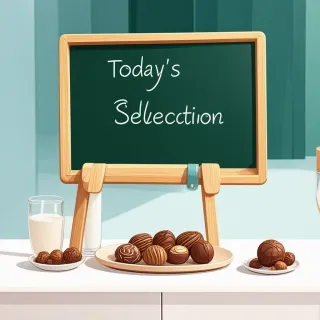
Use a countertop “today’s truffle selection” stand with a styled QR code. Each morning, staff edit the card’s Menu Sections to show what’s fresh, sold out, or new, while the printed stand stays untouched. Add a short description under each truffle so customers can read before they ask. The same card can include your Email or Address for custom gift basket inquiries.

Frequently asked questions about using a qr code menu for chocolate shop

Sign up free in QRDrobe, open the Restaurant / Cafe Menu template, and fill in the required Name and Menu Sections fields. Add your cover image, pricing, descriptions, and any contact or social links you want customers to see. Then style and download the QR code for print or sharing.