Social Media QR Code: One Code to Share All Your Profiles

A social media QR code is a scannable code that leads to a mobile landing page showing all your social profiles in one place. With QRDrobe’s dynamic template, you can update your links anytime without reprinting the code — and every scan is tracked so you know exactly how many people check out your profiles.

Free dynamic QR code

Make your own in minutes

Create a mobile page, update it anytime without reprinting, and track every scan.

Create your free QR code →

No credit card needed • Set up in under 5 minutes

What makes a social media QR code a must-have for your brand

You’ve probably seen it before — a QR code on a business card, a flyer, or a poster that leads to a single link. That link might be your Instagram, your YouTube, or your Linktree. But what happens when you update your profiles, add a new channel, or change your handle? You have to reprint the code. That’s where a social media QR code — like the one you can create with the QRDrobe Social Media Links template — changes everything.

Instead of pointing to one static link, this code takes people to a stylish mobile landing page (your “card”) that lists all your social profiles in one place. Tap your Instagram, TikTok, YouTube, LinkedIn, or any other link — it’s all there. And because the QR code is dynamic, you can edit that card anytime without reprinting. Change your bio, swap out a link, or update your cover image — the printed code keeps working. That means you can put it on a sticker, a poster, or a table tent and never worry about it going stale.

Who needs this? Influencers and content creators who want to grow their follower count across multiple platforms. Small business owners who want customers to find their Facebook page, Instagram shop, and Google reviews from one scan. Event organizers who need to point attendees to a Twitter hashtag, a LinkedIn group, and a YouTube playlist. Anyone with a brand who wants to make it dead simple for people to follow them everywhere.

Here’s how to make it work hard for you. Use the Cover Image field to show your logo, a current promo, or a photo of your face — it’s the first thing people see, so make it count. The Name field is required, so use your brand name, your full name, or a nickname that sticks. The Subheading is your chance to add a tagline, a call to action (“Follow me for daily tips”), or a short bio. And the Social Media Links field is where you add each of your profiles — you can reorder them, add new ones, or remove old ones as your channels evolve.

A common mistake? People try to cram every single social link they own into the card. But think about your audience — do they really need your Pinterest, Tumblr, and Discord right now? Pick the top three to five platforms where you’re most active, and where your followers actually hang out. You can always add more later, but clarity beats clutter. Another smart move: update your Cover Image seasonally or when you launch a new campaign. That way, even someone who scanned last month gets fresh context.

Tracking is another superpower of this dynamic QR code. Every scan is recorded, so you can see how many people are engaging with your printed materials — whether it’s a flyer at a coffee shop, a sticker on your laptop, or a poster at an event. That data helps you decide which placements work best and when to refresh your content. No more guessing if your QR code is getting ignored or working hard.

When should you use it? Whenever you want to turn a one-time scan into an ongoing connection. Put it on your business card so every handshake becomes a follow. Add it to your packaging so buyers can find your socials. Include it in email signatures, slide decks, or even as a QR tattoo (yes, people do that). The beauty is that one printed code can evolve with you — your brand never stops, so your link shouldn’t either.

Step-by-step: setting up your dynamic social media QR code

  1. Step 1

    Pick the Social Media Links template

    When you start in the app, choose the Social Media Links template from the card library. This gives you a pre-built mobile landing page designed specifically to hold all your social profiles in one tap-friendly layout.

  2. Step 2

    Upload your cover image

    Tap the Cover Image field to add a photo, logo, or graphic that represents your brand or personality. This image appears at the top of your landing page, so choose something that catches the eye and sets the tone for your profiles.

  3. Step 3

    Fill in your name

    In the Name field, type your name, business name, or handle — this is the headline on your card. Since it’s required, make sure it’s clear and recognizable so visitors instantly know whose links they’re tapping.

  4. Step 4

    Add a subheading

    Use the Subheading field to add a short tagline like “Fitness & Lifestyle” or “Follow me for tips.” This extra line of text sits right under your name and gives people a quick reason to connect with you.

  5. Step 5

    Set up your social media links

    In the Social Media Links section, add each of your profiles — one per field — by pasting the full URL (like instagram.com/yourhandle). You can include Instagram, YouTube, TikTok, Twitter, Facebook, LinkedIn, or any other platform you use.

  6. Step 6

    Generate and print your QR code

    Once your page looks good, hit generate to create your dynamic QR code. Download the code, print it on business cards, flyers, or posters — and since it’s dynamic, you can edit the page anytime without reprinting.

5 unexpected places to put your social media QR code

Your QR code doesn't have to live on a boring flyer. Here are five unexpected spots—each one a chance to turn a casual glance into a tap that lands on your social links.

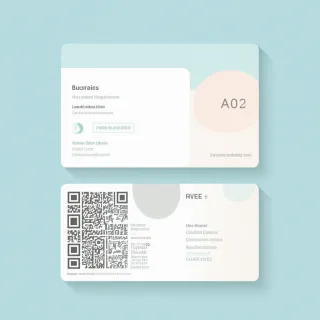
Business card flip side

Business card flip side

Print your QR code on the back of your business card. Update the Cover Image every month with a new photo of your latest work or a seasonal greeting—the code stays the same, but the first thing people see changes. It’s like giving your card a refresh without reordering.

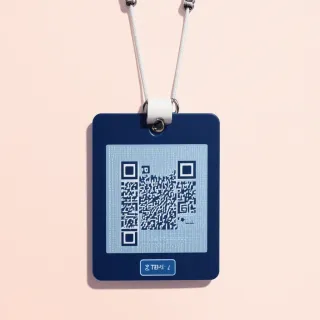
Event badge lanyard

Event badge lanyard

Attach a small QR sticker to your conference badge. In the Name field, put your handle (e.g., “@YourHandle”) so people know what they’re tapping into. Use the Subheading for a one-line bio like “Digital artist & storyteller”—makes instant connection at networking events.

Product packaging insert

Product packaging insert

Tuck a QR code card inside your product packaging. Set your Social Media Links to include a direct link to a unboxing video or a community hashtag. When you release a new product, just update the links—customers who bought last year still scan the same code and see your latest content.

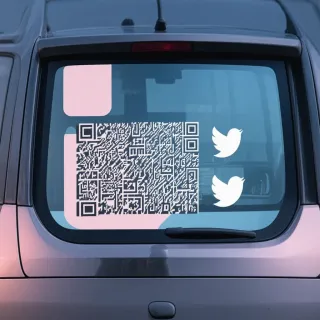
Vehicle rear window decal

Vehicle rear window decal

Apply a QR decal to your car window. In the Cover Image, upload a photo of your vehicle or a bright, branded graphic so the landing page feels mobile-friendly. Update the Name to say something like “Follow our adventures” and rotate the Social Media Links to highlight your current travel or project series.

Presentation slide footer

Presentation slide footer

Add your QR code to the bottom corner of every slide in your deck. Use the Subheading to prompt the audience: “Tap to follow along.” After the talk, change the Social Media Links to point to a recap video or a Q&A thread—the same code works for the live audience and anyone who sees the slides later.

Why QRDrobe’s social media template is the simplest way to unify your links

Branded first impression

Branded first impression

Your Cover Image sets the stage — use your logo, a photo of you, or your latest content thumbnail. The Name field is your handle or brand name, and the Subheading can be a tagline like 'Follow for daily tips' or 'Let’s connect.' Together, they make your link feel like you, not a generic page.

All links, one place

All links, one place

The Social Media Links field lets you add Instagram, TikTok, YouTube, LinkedIn, Pinterest, Snapchat — whatever you use. No more cramming five profiles into a single bio. Your followers tap exactly the platform they want, and you keep everything organized.

Update anytime, anywhere

Update anytime, anywhere

Because the QR code is dynamic, you can change your Cover Image, swap out a link, or tweak the Subheading without printing a new sticker. Just edit the page in the app — the printed code still points to the latest version. Perfect for when you launch a new channel or rebrand.

Track every scan

Track every scan

Every time someone scans your QR code, QRDrobe logs it. You’ll see how many people landed on your page, which links they tapped, and even where they scanned from. Use that data to know which platform drives the most traffic — then double down on what works.

How to customize your social media QR landing page so it feels like you

Your social media QR code is just the start — the real magic happens when you customize the landing page behind it. Think of it as your digital handshake: the first thing people see after scanning, so you want it to feel undeniably you. And since you can update this page anytime without reprinting the QR code, you have total freedom to experiment and optimize.

Start with the Cover Image [coverImage]. This is the large visual that sets the tone. While many users default to a personal photo, consider repurposing it creatively: use your brand logo for business recognition, a high-quality product shot to showcase what you offer, or even a simple event flyer if the code leads to a specific campaign. Keep it clean and high-resolution — blurry or cluttered images can make your page feel unprofessional. If you're a content creator, a candid photo of you at work (like recording a video or holding a product) often feels more relatable than a stiff headshot.

Next, fill in your Name [text] (required) — don't just use your real name. Include your social media handle or brand name here so people instantly know how to find you elsewhere. For example, instead of "Jane Doe," use "Jane Doe | @janedoecreates" or "Jane Doe Photography." This small tweak reinforces your online identity and makes it easier for followers to recognize you across platforms. The Subheading [text] is your chance to tease what you're about. Write a short, punchy line that captures your niche: "Daily design tips & behind-the-scenes" or "Helping small businesses go viral." Avoid generic phrases like "Welcome to my page" — make it specific enough that a new visitor knows exactly what to expect.

Now, the heart of the page: Social Media Links [dynamicLinks]. This is where the social media QR code really shines. Don't just list every account you have — prioritize. Put your most active or important platform first (like Instagram for an influencer, or LinkedIn for a business consultant). Use the link labels to clarify action: "Watch my latest YouTube video" or "DM me on TikTok for collabs." You can also repurpose links creatively: add a link to your Linktree or other bio service if you have one, or include a direct link to a specific landing page for a freebie or newsletter signup. The key is to keep the list short — 3 to 5 links max — so visitors don't feel overwhelmed and can quickly tap what matters.

One common mistake is treating this page as static. Since the QR code is dynamic, you can swap links based on seasons, launches, or trends. For example, an influencer might change their top link to a new affiliate product each month, while a small business owner could highlight a limited-time sale. Use the tracking feature built into the QR code to see which links get the most taps — then rearrange them for maximum engagement. And don't forget to update your Cover Image periodically to keep the page feeling fresh, especially if you're using it on printed materials like business cards or posters.

Finally, think about your audience's context. Someone scanning a social media QR code at a networking event wants quick access to your professional profiles, so your LinkedIn and website should be front and center. At a pop-up shop or conference booth, lead with your Instagram and TikTok to capture the buzz. Tailor the landing page to the physical location of the code — it's a small detail that makes a big difference in how useful your followers find it. With these tips, your QR code becomes more than a shortcut; it's a living, breathing extension of your personal brand.

Your questions about social media QR codes, answered

Yes—the QRDrobe Social Media Links template is built for exactly that. When someone scans your QR code, they land on a mobile-friendly page showing thumbnails for each of your platforms. They just tap the one they want, whether that's Instagram, TikTok, YouTube, or any other link you add. All your profiles live behind a single code.