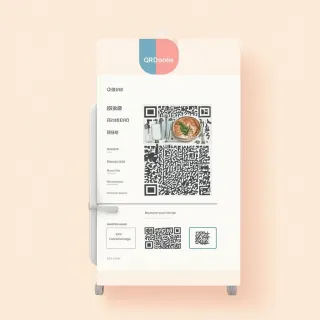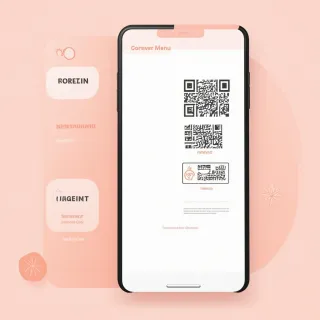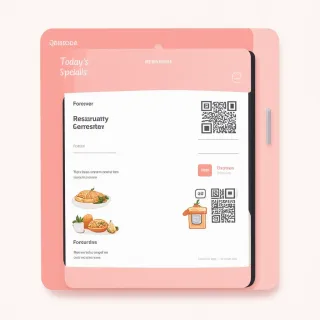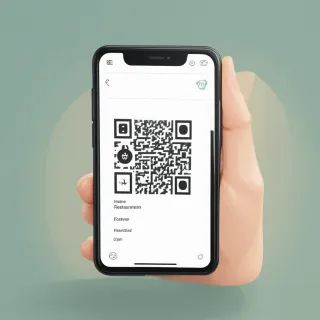
For a restaurant menu QR code on a fridge magnet, the QRDrobe Catalog/Menu card should hold the fields a customer actually needs while standing at your kitchen fridge: Name set to your restaurant or brand, a Cover Image that shows one crisp appetite shot, Menu Sections broken into logical groups such as Starters, Mains, Kids, Drinks, and Dessert with concrete item names and prices, plus Phone, Email, Address, and Website for calls, directions, reservations, or online ordering. Name and Menu Sections are required; the rest are optional. Because this is a dynamic QR template, the printed magnet keeps scanning correctly even after you update menu items, prices, or descriptions, and scan activity is tracked in your QRDrobe app.
Start with Name and Cover Image. Name is required, but don’t type 'Menu' or 'Scan Here'—use the restaurant name customers recognize, like 'Sal’s Pizza' or 'Cafe Lago.' That gives context if someone shares the magnet or scans it later. Cover Image isn’t required, but it makes the card feel like a menu rather than a plain list. For Cover Image, choose a single clear, close-up food or drink shot that makes you want to eat, not a collage, logo, or photo of the dining room unless the room is the point. Leave text off the image; menu text belongs in Menu Sections. A crisp image loads quickly and keeps the top of the mobile card scannable. If you later change your best-selling dish, you can swap the cover without reprinting the magnet.
Menu Sections is the required field that does the real work on a fridge magnet. Group items the way a customer decides: Starters, Mains, Kids, Drinks, Dessert. Within each section, use concrete item names and visible prices, for example 'Crispy calamari $11' with a short description like 'served with lemon aioli' or 'Sunday roast $19 — slow-cooked beef, carrots, potatoes.' Keep descriptions to a few words or one line; a person in a kitchen is scanning, not reading a review. If you have a long paper menu, don’t copy every item onto the magnet card. Choose your best sellers and a 'Specials' section you update through QRDrobe when dishes change. This is also where you avoid the common mistake of putting the full menu into the Cover Image; text inside an image can’t be read easily on mobile and defeats the editable menu sections.
Fill Phone, Email, Address, and Website as actions, not decoration. For a fridge magnet, the customer is likely at home or in a workspace near the magnet, so the phone number should be the direct line for takeout or questions; the address should be specific enough for directions, including street number and neighborhood if you have more than one location; and the website should point to online ordering, reservations, or the full menu, not just your homepage if a direct page is more useful. Email is optional, but if you want catering or event inquiries, use a monitored address. Social Media Links work well for restaurants that post daily specials on Instagram or Facebook. If a field does not help a real customer act, leave it blank. Blank optional fields simply won’t clutter the card.
Keep the mobile page scannable for someone standing in your kitchen. The card opens like a landing page, so order matters: Name and Cover Image at the top, menu sections in logical eating order, contact and action links near the bottom. Use short, plain item names and consistent price formatting; avoid all-caps titles or long paragraphs. When you style and download the QR code for a fridge magnet, make the code large enough to scan from a normal fridge distance—around two inches or larger on the printed magnet—and test the printed magnet with a few different phones before committing to a full order. The dynamic part is what saves you: after the magnet is on a customer’s fridge, you can change a price or section and the same printed code keeps serving the updated card.
Common mistakes to check before ordering magnets: using a generic name instead of the restaurant brand, choosing a cover photo with old prices or a dish you no longer serve, putting too many items in one section, and forgetting that the phone link should be tappable on mobile. After you fill the card, scan the card link in your app on a phone, tap the phone number, open the website, and read the Menu Sections exactly as a customer would. Then make a small edit, scan the same fridge magnet code again, and confirm the updated price appears. That final check proves the printed magnet won’t go stale the next time you change the menu.