Pet Store Product Catalog QR Code Menu | QRDrobe

A pet store product catalog QR code menu in QRDrobe starts as a dynamic Restaurant/Cafe Menu card: you set up Menu Sections for dog food, cat food, fish food, bird food, small-animal supplies, treats, and accessories, then print one QR code. When stock or promotions change, you edit the card in the app—remove sold-out items, spotlight featured products—and the same printed QR code keeps working, with scan counts visible.

Free while in beta

Make your own in minutes

Create a mobile page, update it anytime without reprinting, and track every scan.

Create your dynamic QR code →

Free account, no credit card • Up to 25 cards during beta

One printed pet store QR code or a separate code per product category?

For a pet store product catalog QR code menu, one printed QRDrobe dynamic card is almost always the easier path than printing a separate QR code for dog food, cat food, fish food, bird food, small-animal supplies, treats, and accessories. You build a single card in QRDrobe, then use Menu Sections to organize those categories inside one scrollable mobile page. A shopper scans the same code at the shelf, on the counter, or in your window and sees the full catalog — just like a restaurant menu with courses — instead of having to scan seven different signs. That one dynamic QR keeps working even after you change prices, add featured items, or pull something out of stock, because the code points to your editable card, not to a frozen PDF or a supplier link.

Start by mapping each category to its own Menu Section. Name the sections exactly what your shoppers expect: “Dog Food,” “Cat Food,” “Fish Food,” “Bird Food,” “Small-Animal Supplies,” “Treats,” and “Accessories.” Inside a section, use each item field for the product name and price, and put the useful real-world detail in the description: brand, weight, protein source, life stage, or a short note like “grain-free adult formula — 4 lb bag.” The Cover field can carry a store photo or a seasonal banner, and the required Name field can be your store name plus “Product Catalog,” so the mobile page is instantly recognizable. If you add Social Media Links, Phone, Email, Address, and Website, the same scan also becomes a mini contact card for your shop.

The main tradeoff is scroll length. With one card, dog, cat, fish, and bird food all live on the same mobile page, so a customer looking for a cat treat may need to scroll through dog food first. QRDrobe’s Menu Sections keep that manageable because shoppers can see the category headers and move to the section they want, but you should still put your most popular or highest-margin categories first. In a pet store, that often means starting with dog and cat food, then treats, then smaller categories like fish, bird, and small-animal supplies. If a category is tiny — say you only carry three bird food options — keep it short rather than stuffing in every brand you can order; the catalog should feel curated, not like a distributor list.

Separate printed QR codes do have one narrow advantage: a code on the fish shelf can go straight to fish food. But with static or separate codes, you end up managing a pile of printed materials, and every daily stock change or promotion means reprinting or replacing the relevant sign. With QRDrobe, you pull the item from the Menu Section or change the price in the card, and every already-printed code that points to that card updates on the next scan. If you still want a category-first experience, you can create separate QRDrobe cards for big departments later, but most independent stores will find that one dynamic card is less work, easier to keep accurate, and simpler for staff to explain at the counter.

A practical workflow is to let the card mirror your stockroom, not your dreams. Each morning, edit Menu Sections to remove items you’re out of, add new arrivals, and add a “Featured” item or two at the top of relevant sections — for example, “Staff pick: freeze-dried chicken treats, $8.99” or “New: small-batch salmon cat food.” Because QRDrobe scan analytics are available, you can check which categories people actually open, then move a slow section lower or promote a popular product higher. This is the kind of adjustment you cannot easily make with printed flyers or separate static codes.

One common mistake is treating the card like a full e-commerce store and adding every field, size, or color variant. That makes the mobile page feel heavy and buries the answer a shopper came for: “Do you carry this, and what does it cost?” Use the description field for one or two decision-making details — size, protein, key feature — not a paragraph copied from the manufacturer. If you need more detail on a product, use the Website field or Social Media Links to point shoppers to a brand page or your shop’s site. Keep the card scannable in both senses of the word: easy to scan with a phone camera and easy to skim with a thumb.

Before you print anything, do a real phone test. Generate the QR in QRDrobe, style it for your sign or shelf tag, print one label, scan it, and scroll from dog food to accessories to make sure the section order feels right. Confirm the Name, Cover, and contact fields show up the way you want. Then reprint the final QR once and reuse that code on shelf strips, window decals, counter cards, and even the receipt or bag insert. The QRDrobe workflow keeps the printed code and the live catalog connected, so you can promote a featured treat or remove unavailable stock without touching a printer.
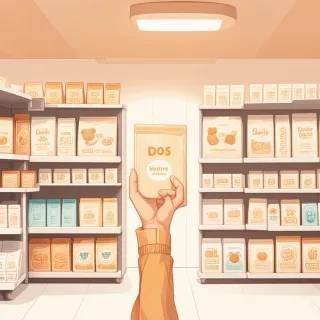

How do I build a pet store product catalog QR code menu in QRDrobe, field by field?

  1. Step 1

    Name it with your store name

    In the Name field, type your pet store’s real name — like “Paws & Whiskers Supply” — so the card feels official and recognizable when a customer scans the printed code. This field is required, and it’s the first thing people see at the top of the mobile card.

  2. Step 2

    Upload a Cover photo that sets the scene

    Use the Cover field to add a clean photo of your storefront, a featured endcap, or a bright display area. Avoid busy shelves with messy price tags; one clear image helps the card feel like a real extension of the shop, not a generic list.

  3. Step 3

    Add contact and social links that help customers act

    In Social Media Links, point to your Instagram, Facebook, or a community page you actually update — you can swap the target later without changing the printed QR. For Phone, Email, Address, and Website, only fill what helps someone act: tap to call, email a special order, get directions, or open your site. Leave any field blank if you wouldn’t want a customer using it.

  4. Step 4

    Create Menu Sections named for each animal category

    In Menu Sections, create sections named Dog Food, Cat Food, Fish Food, Bird Food, Small-Animal Supplies, Treats, and Accessories. This is the required field that turns the card into a browsable catalog, so customers can jump straight to the section they need instead of scrolling one long list.

  5. Step 5

    Fill each section with items, prices, and useful descriptions

    Inside each section, add items with a name, price, and a short description that answers a shopper’s first question — brand, bag size, protein, species, or dietary feature like “grain-free” or “for senior cats.” Keep the wording short and scannable on a phone. For products you want to push, put them at the top of the section so they read as featured.

  6. Step 6

    Style and download the QR code for print

    Before you download, style the QR code to match your shelf talker or sign. QRDrobe lets you style and download QR codes for print or sharing, so export the version you need for a price card, window decal, or counter stand. The printed code points to the editable card, not a fixed PDF menu.

  7. Step 7

    Open the live sample and check your card on a phone

    Open https://app.qrdrobe.com/c/sample-menu as a visual reference, then scan your own QR with a phone and tap through every section. Check that the cover image loads, the contact links behave the way you expect, and the product descriptions are easy to read without zooming. If something feels off, edit the card and scan again — the same printed QR will show the corrected version.

  8. Step 8

    Print and place it, then update stock without reprinting

    Put the printed QR where shoppers already look: on dog food endcaps, cat food shelf talkers, treat displays, or the front counter. When a product sells out or a promotion changes, remove or update the item in Menu Sections and the same printed code keeps working. Since scans are tracked in QRDrobe, you can see whether the catalog is actually getting opened and which placement is pulling attention.

Clever ways to use one editable QRDrobe catalog across the whole store

One editable QRDrobe catalog can live in several spots at once because the printed code stays the same while the card behind it changes. Here are four ways to reuse it around the store without reprinting anything.

Shelf talkers and endcaps

Shelf talkers and endcaps

Print the same dynamic QR on shelf talkers above dog food, cat food, fish food, and small-animal supplies. Each scan opens the full catalog, but the Menu Sections keep categories separated, so a customer can jump straight from Dog Food to Treats without hunting. When you remove an unavailable item or add a new brand in the card, every shelf tag keeps pointing to the updated version.

Checkout counter card

Checkout counter card

Keep a small card at the checkout counter with the same QR code. Before a weekend promotion, swap the Cover image to highlight a featured treat or a new fish food line, then update Social Media Links so waiting customers can follow an adoption event or giveaway. The code itself doesn't change, so the laminated counter card stays exactly where it is.

After-hours window decal

After-hours window decal

Put the QR on a window decal so people can scan after hours. Fill the Phone field with your store number and the Address field with the shop location, and the card becomes a tap-to-call plus directions card for someone standing outside. Add the Website field so passersby can check your latest arrivals before the next visit. If the phone number or site changes, update the card once without replacing the decal.

Staff lanyards and vendor sheets

Staff lanyards and vendor sheets

Give staff a lanyard card with the QR so they can pull up the catalog next to a customer and show live availability. Use the same code on a printed sheet for vendor reps, because Menu Sections let you point them straight to dog food, cat food, or treats when they ask what's on the floor. If a vendor's product is out of stock later, remove it from the section and that same lanyard or sheet still reflects the change.

Mistakes that make a pet store QR menu feel stale or untrustworthy

Most stale or untrustworthy pet store QR menus aren’t a QRDrobe limitation; they’re a card-keeping problem. Your pet store product catalog QR code menu stays useful when you treat the editable card as live shelf talk, not a one-time print file. The same printed code keeps working after you edit the card, so every mistake below is fixable without reprinting the display — but it can still cost you a sale if a customer scans a dog food sign and sees “Starters” or an out-of-stock chew with no price.

The fastest way to look unfinished is leaving the template’s default restaurant or café section names in place. If your Menu Sections still read “Appetizers”, “Mains”, or “Drinks”, a customer scanning a dog food display assumes they got the wrong QR. Open Menu Sections and rename them to match your aisles: Dog Food, Cat Food, Fish Food, Bird Food, Small-Animal Supplies, Treats, and Accessories. If you sell both kibble and raw, split Dog Food into “Dog Kibble” and “Frozen Raw” instead of creating one long blur. The section name should answer “what shelf am I looking at?” before the shopper scrolls.

Another trust killer is typing the price into the item name instead of using the item’s price field. When “Chicken and rice kibble - $42.99” sits in the item name, prices don’t line up in a consistent spot and the card reads like a homemade flyer rather than a working catalog. Put the product in the item name, put the number in the price field, and use the description for size, protein source, life stage, or a one-line feeding note. For example: item name “Salmon and Pumpkin Grain-Free Dry Food”, price “$47.50”, description “12 lb bag; adult dogs; no corn, wheat, or soy.” That keeps each entry scannable and easy to update when a vendor raises your cost.

The biggest maintenance mistake is leaving sold-out products visible. A customer who taps through to a fish food card, sees a specific pellet, walks to the aisle, and finds an empty hook has a reason not to trust the display next time. Because QRDrobe edits don’t break previously generated QR codes, removing an unavailable item from the Menu Sections takes a few seconds and protects the printed sign. When a popular product sells out, remove it or put a featured, in-stock alternative in its spot; if it will be back within a day or two, say so inside the item description. A card full of dead inventory feels abandoned. A card that mirrors the shelf feels run by a shopkeeper who is paying attention.

Two smaller fields cause outsized distrust: Website and Cover. If you add a Website link, send it somewhere specific and working — your own online store, a store-specific page, or a promotions page that matches the scan. A broken link or a generic distributor homepage makes the whole card feel careless. The same goes for Cover: a low-contrast photo, a dark storefront shot, or a busy collage turns into a muddy rectangle on a small phone screen. Use the Cover field for a bright, readable image — your logo on white, a clean aisle photo, or a simple product shot — and open the card on your phone to confirm it still reads at thumbnail size.

Even a perfectly maintained card fails when the printed code itself is hard to scan. A dynamic QR code printed too small on a shelf tag will struggle in dim aisles, through scuffed laminate, or for customers with older phone cameras. Print the code at least around 3/4 to 1 inch square for hand-held tags, larger for window clings or posters, and keep a clear quiet zone around the code. Don’t wrap it around a curved jar, bin, or endcap pole; if you must put a code on a rounded surface, place it on a flat label, card pocket, or magnet instead of bending the image around the curve. High contrast matters too: dark code on a light background, never light gray on white or dark navy on black.

Run this pre-print check once per card: open the card on your own phone and scan from roughly three feet away under store lighting. Confirm every Menu Section loads, the Cover is readable, the Phone link actually dials the store, and the Address link opens accurate directions — especially important if you’ve moved shops or changed numbers. If you included Social Media Links or Website, tap those too. Then set a weekly 10-minute reminder to sweep the pet store product catalog QR code menu: pull sold-out products, refresh featured items, and update prices. Same printed QR code, same display, current shelf — that is the advantage a static menu doesn’t give you.

Pet store product catalog QR code menu FAQ

Create one QRDrobe Restaurant/Cafe Menu card, then add each category as its own Menu Section. For example, add a Dog Food section and a Cat Food section, then list the individual products under each one. You can use the same card for fish food, bird food, small-animal supplies, treats, and accessories too.